Get started with Secrets
This guide takes you from nothing to an app that reads its secrets from Mocco, locally and on Vercel. It takes about ten minutes.
1. Turn on Secrets
Workspace owners and admins open the workspace's Products page and turn on Secrets.
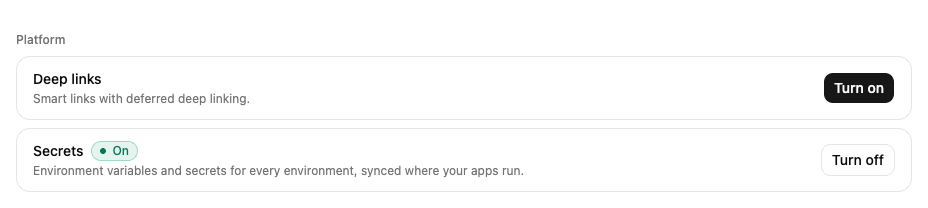
Every project in the workspace now has a Secrets page. The first time someone opens it, the project gets three environments: Development, Staging and Production.
2. Add your first secrets
Open the project's Secrets page and pick an environment. Choose Add secret for one value, or Import .env to paste a .env file. Import shows what it will add and change before it writes anything.
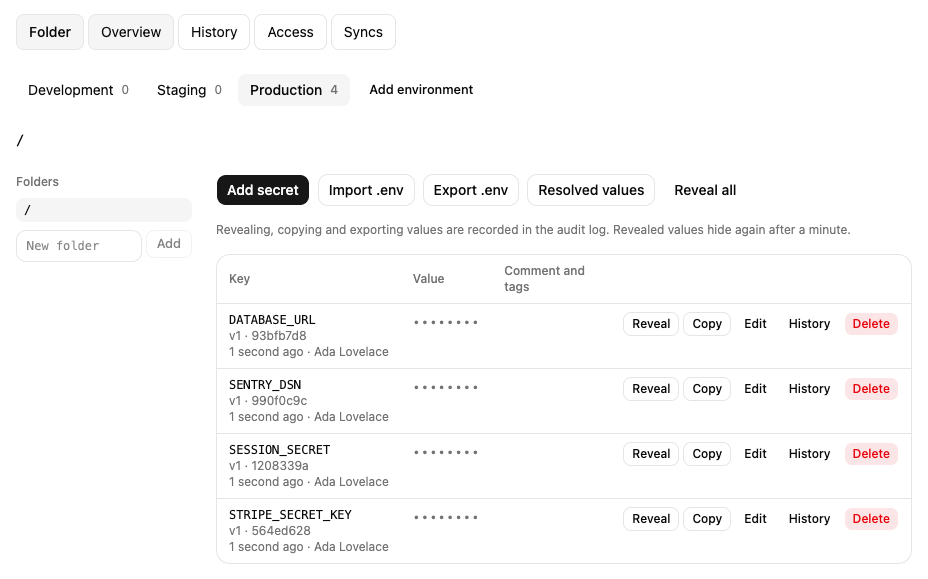
Values stay masked until someone reveals them, and every reveal is recorded in the audit log. To keep values for different parts of your app apart, add folders such as /web and /worker. See Manage secrets for tags, versions and the overview across environments.
3. Run your app with them
Install the Mocco CLI, sign in once and link your project:
npm install -g @mocco/cli --@mocco:registry=https://packages.mocco.club/api/packages/fi-workers/npm/
mocco login
mocco link --workspace <workspace-uuid> --project <project-uuid> --env development --path /
mocco secrets run -- yarn dev
mocco secrets run starts your command with the folder's values as environment variables. Nothing is written to disk. Copy the workspace and project UUIDs from the console's URL. More options, such as --strict and .env export, are in Use secrets from the terminal.
A server can also read its secrets at boot with @mocco/node; see Load secrets in a Node server. GitHub Actions jobs can read them without any stored key; see Read secrets in GitHub Actions without a key.
4. Sync them to Vercel
On the Secrets page, choose Syncs. Connect Vercel with an access token, then choose Sync a folder: pick the folder, the Vercel project and the Vercel environments to write.
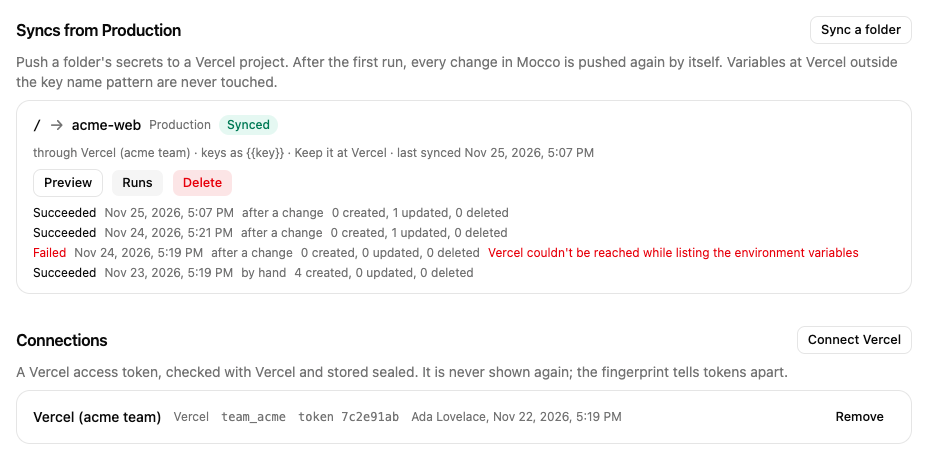
Select Preview to see which variables the sync would create, update and delete in Vercel, then Run now. From then on, every change you make in Mocco reaches Vercel within seconds. Sync secrets to Vercel explains key names, deleting and what a sync never touches.
5. Change a value safely
Edit a secret in the console, or run mocco secrets set. Every change is a commit in the folder's History, and you can revert one commit or roll the folder back to an earlier point. A rollback is synced to Vercel like any other change. See History and rollback.
To hear about changes, add the Mocco preset to a Discord channel under Notifications: it includes secret changes, rollbacks and failed syncs, with keys and fingerprints but never values.
Who can do what
Workspace owners and admins can do everything here. They can also give members access per environment or folder on the Access tab, for example letting developers read Development but only describe Production. See Secrets overview.