Manage projects and tasks in Markdown
Open Work in your workspace to share projects, tasks, documents and meetings with its members. Each file has Markdown source and a history of saved versions. Workspace membership controls access to these shared files.
Create a project and task
Choose Projects in Work, then New project. The editor opens with a path and Markdown containing a generated identity and timestamps. Change the title and body, then choose Save shared file. Keep the generated identity and required metadata.
Choose All tasks, select the project, then New task. Edit its title, body, status and priority in the Markdown editor and save. The project filter links a new task to that project. The separate Projects entry in the workspace sidebar configures Mocco products; Work's Projects view groups Markdown work.
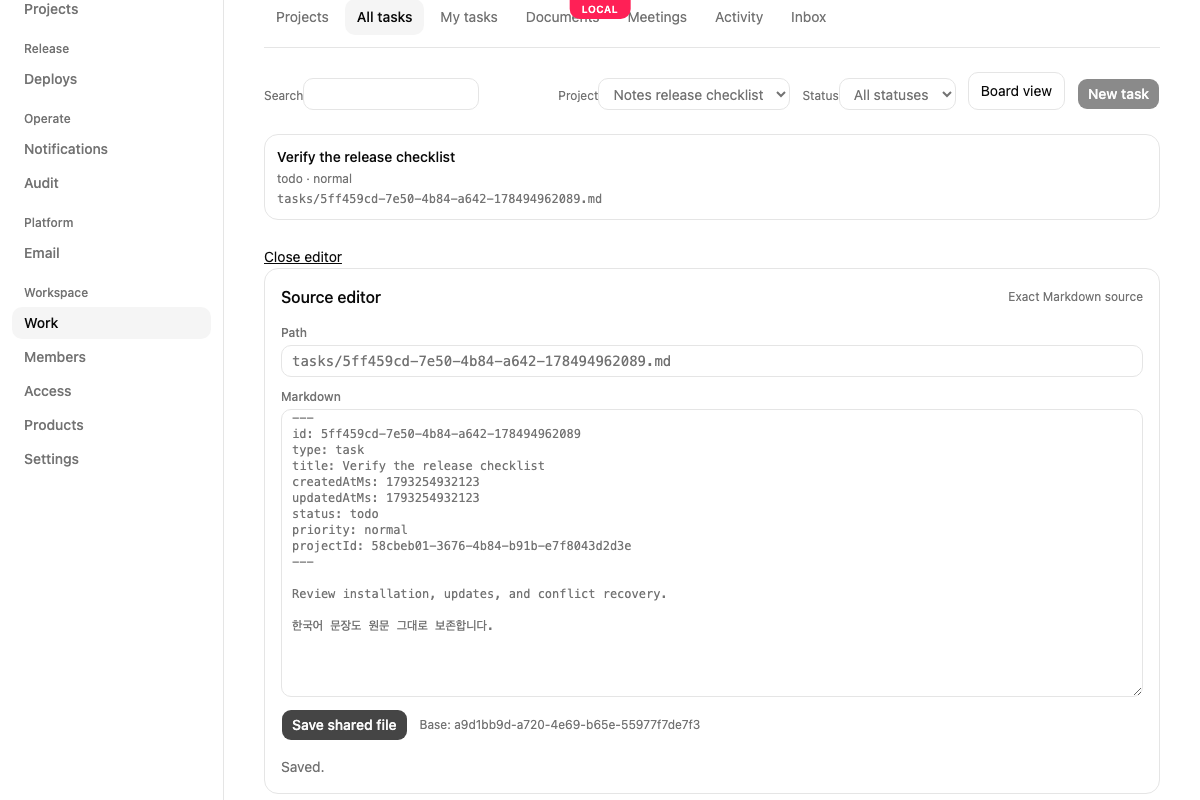
Saving shares the file with the workspace. Unsaved text stays in the current editor; save or copy it before navigating away. A failed save leaves the draft available for retry. If the outcome is uncertain, retry the same pending save rather than creating a replacement file.
Find and organize work
Use the project, status and search filters to narrow the list. My tasks shows tasks assigned to you. Board view groups tasks by their saved status; scroll horizontally to see every column. Open a card to change its Markdown and save. List view returns to the rows.
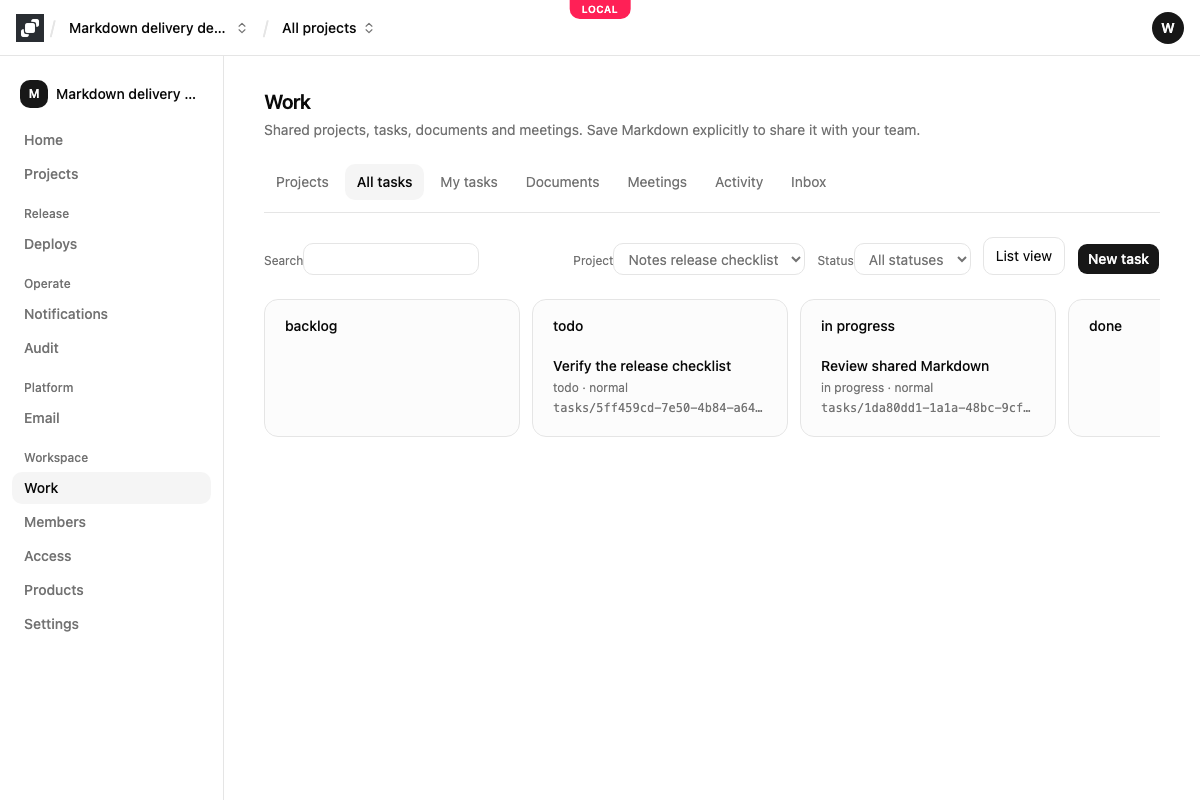
Task status values in the source are backlog, todo, in_progress, done and canceled. Priority values are urgent, high, normal and low. The interface translates their labels while preserving these source values. Changing the console language leaves file contents intact.
Choose Documents or Meetings to browse those file types. A document belongs to a Work project. A meeting preserves its source-session identity and start time. Their generated frontmatter includes the required fields; keep those fields when editing.
Review a concurrent edit
If another save changed the same file, Work opens Conflict review. Your exact draft and Current shared source let you compare both versions. Your submitted conflict draft remains in version history.
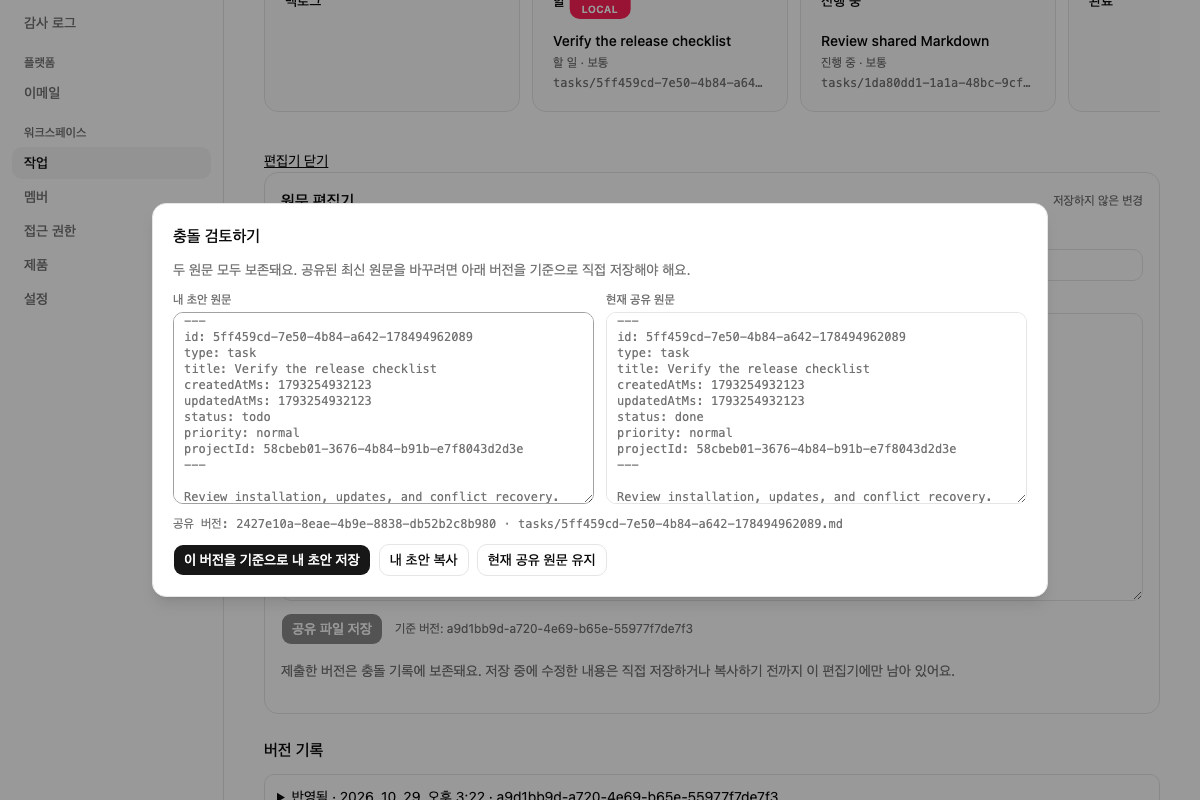
Choose Keep current shared source to load the reviewed shared version into the editor and refresh the task's visible status. This choice creates no additional source version. Copy your draft first if you want a separate copy.
To apply your draft, review the displayed shared version and choose Save my draft against this version. A further concurrent save requires another review. Changes typed while a save was pending remain in the editor; copy or submit those current changes explicitly.
Follow changes
Open a file's version history to inspect accepted saves and preserved conflict drafts. Activity lists accepted workspace changes. Inbox shows assignment and status notifications addressed to you; marking an item read affects your own inbox.