Take inquiries on your site and in your app
The contact page is a page of your help center, at /contact, where people write to your team and read your replies. Each inquiry is a messenger conversation: it arrives in the project's Inbox like one started in your app, and your team answers it the same way. The visitor picks a category, writes, can attach screenshots, and comes back to the same page to read the answer.
It works in a browser and in your app's in-app browser, so an app can offer Contact us without drawing its own screens. If you'd rather build the screens in your app, use the SDK instead (In-app contact with Mocco Messenger). The two can live side by side: they share the inbox, the categories and the people.
What you need
Messenger set up for the project. Set up messenger on the Inbox page creates the project's identity secret (In-app contact with Mocco Messenger).
A help center for the project (Publish a help center). The page is a part of it.
To be an owner or admin of the workspace, to turn the page on.
For people who are signed in to your app: a sign-in URL, or a token from your app's server, or both. Without either, only guests can write.
1. Turn the page on
On the project's Inbox page, open the settings and find Contact page. Check Take inquiries on a page of your help center.
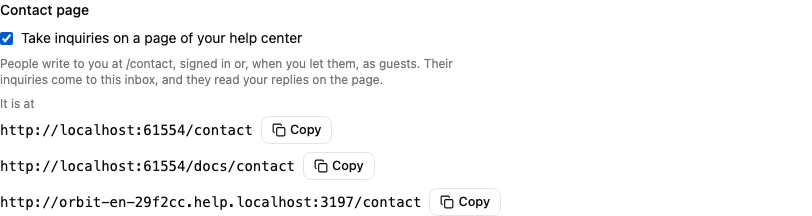
Below the switch, It is at lists the page's addresses, with a copy button each. The first is the one to share. Before you turn it on, the same list says where it will be. The page starts at your help center's own address, https://<address>.help.mocco.club/contact, and follows your help center when you serve it on your own site: a help center at https://example.com/docs has its contact page at https://example.com/docs/contact.
If the project has no help center yet, the section links to the help center's setup instead. Members of the workspace see the setting but can't change it. Every change is in the audit log.
Turning the page on refreshes the help center's pages at once: their header gains Contact us. Turning it off takes the page down: it answers 404, and the sessions people had open on it stop working. Their conversations stay in your inbox, and you can still answer them there.
2. Serve it on your own site
A help center served at a path of your site already has the contact page under that path. You can also give the page a path of its own, such as https://example.com/contact, so its address is short and doesn't depend on where your help center is.
On the project's Help center page, in Your domain, pick Contact page as the Part of the site, type the public URL and choose Add path. The console shows the setup to copy, as for any path (Serve your help center on your own site). For a help center whose address is orbit, the Next.js rewrite is:
// next.config.ts
async rewrites() {
  return [
    { source: '/contact', destination: 'https://www.mocco.club/_proxy/orbit/contact' },
    { source: '/contact/:path*', destination: 'https://www.mocco.club/_proxy/orbit/contact/:path*' },
  ];
},
Deploy it, then choose Check now. Once the path is Active, it is the page's address everywhere, and the help center's own address sends visitors to it.
You can add the path before you turn the page on. Until then, the console lists it as Contact page (off).
A few things to keep in mind:
The path can't sit inside another path of the same website.
https://example.com/help/contactisn't possible when a board is athttps://example.com/help.Your sign-in endpoint can't live under
/contact, because your site forwards that path to Mocco./api/help/enteris a good place.Once the path is active, it joins the Return addresses to allow under Signing in. Add it to your sign-in endpoint too, or signing in from the page sends people to your fallback page.
3. Link to it
While the page is on, every page of your help center and its feedback boards shows Contact us in the header. Link the page from your own site too, for example in its header or footer and on your support page.
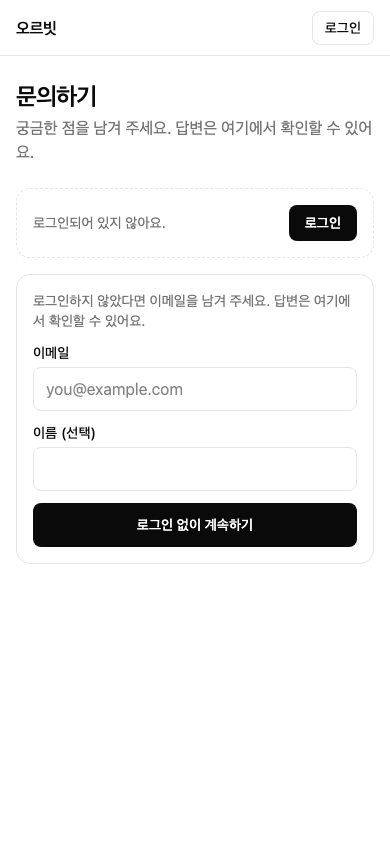
The address has no language in it, so it is safe to put in emails and apps. The page's own words follow the language your help center is written in: Korean for a Korean help center, English otherwise. Your categories show as you named them in the inbox settings.
Search engines don't list the page: it holds nothing to read until someone writes.
4. Open it from your app
An app opens the page in an in-app browser, with expo-web-browser in React Native. Two things go along in the address:
Who the person is, as
token: a short-lived token from your app's server. It is the same token your sign-in endpoint signs: HS256 with the project's identity secret,subyour user's id, anexpat most one hour ahead, and optionallynameandemail, which your team sees in the inbox. Leave it out while nobody is signed in.The device, so your team sees what the person was running:
appVersion,build,platform,osandlocale. The inbox's user panel shows them as you send them, so sendiosorandroidas the platform.
import * as Application from 'expo-application';
import * as WebBrowser from 'expo-web-browser';
import { Platform } from 'react-native';

const CONTACT_PAGE = 'https://example.com/contact';

export async function openContactPage() {
  const params: Record<string, string> = {
    appVersion: Application.nativeApplicationVersion ?? '',
    build: Application.nativeBuildVersion ?? '',
    platform: Platform.OS === 'ios' ? 'ios' : 'android',
    os: String(Platform.Version),
    locale: Intl.DateTimeFormat().resolvedOptions().locale,
  };
  const user = await getSignedInUser();
  if (user !== null) {
    params.token = await api.helpToken(); // your server signs it, for 10 minutes
  }
  const query = Object.entries(params)
    .filter(([, value]) => value !== '')
    .map(([key, value]) => `${key}=${encodeURIComponent(value)}`)
    .join('&');
  await WebBrowser.openBrowserAsync(`${CONTACT_PAGE}?${query}`);
}
The query is built by hand because React Native's URL doesn't implement every method.
The page takes the token out of the address as soon as it loads, keeps it only for that browser tab, and exchanges it for a messenger session. It never sends the address on to other sites. Your proxy and Mocco can still see the query in their request logs, so keep the token short-lived: ten minutes is plenty.
Hand over a fresh token every time you open the page. The in-app browser doesn't share your app's sign-in, so the page can't sign the person in again by itself.
Use token in the query, not #token= in the fragment. The page accepts a #token= only when that browser tab asked your sign-in URL for it, so that a link can't sign a visitor into somebody else's account. A token in the query never moves what the person wrote as a guest on that device into their account; signing in with Sign in on the page does.
Guests
With Let people who aren't signed in write on in the inbox settings, the page offers a short form to someone who isn't signed in: their email and, if they like, their name. Continue without signing in opens their list of inquiries. Your team sees the conversation marked as a guest's, with the email they left.
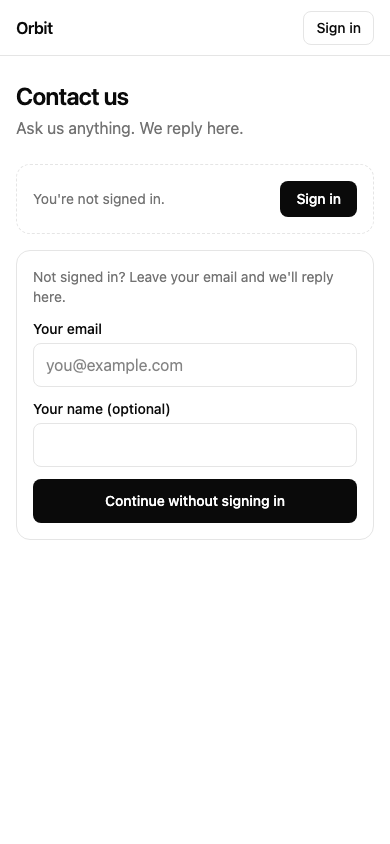
With guests off, the page asks people to sign in to write.
The browser remembers a guest: the page keeps a guest token in the browser's storage, on the site that serves the page. When they come back in the same browser and fill in the form again, they see their earlier inquiries and your replies. Another browser or device starts afresh. Some in-app browsers don't keep storage between openings, so a guest in your app may not find their earlier inquiries there.
If a guest signs in with Sign in on the page, what they wrote as a guest in that browser moves to their account, and the browser forgets the guest token.
Signing in
With a sign-in URL set, the page shows Sign in in its header. It goes through your own app's sign-in and comes back to the page signed in, exactly as on your feedback boards (Let people sign in on your help site). Sign out forgets the person in that browser.
A signed-in visitor's session lasts 30 days, but the page keeps it only for the browser tab, so a shared computer doesn't keep it. When someone who signed in before comes back, the page checks your sign-in URL quietly and comes back signed in if your site still knows them.
Attachments
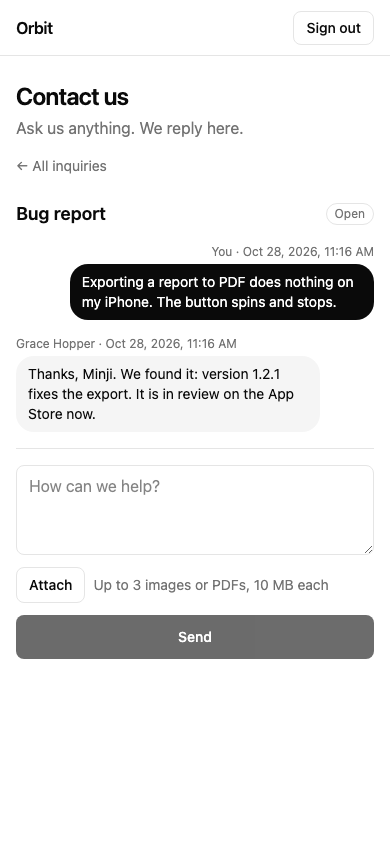
People can attach up to three images (PNG, JPEG, WebP or GIF) or PDFs to a message, 10 MB each. Mocco checks each file the way it checks files from your app: a file that isn't really the image or PDF it claims to be is refused. If a file can't be uploaded, the page says so by name and sends the message without it.
Files your team attaches to a reply show in the page's thread: images to look at, PDFs to download.
Replies
Your team answers from the inbox, or with mocco_messenger_reply from an agent. While an inquiry is open, the page checks for new replies every 15 seconds. In the list, an inquiry with a reply the person hasn't read is marked New reply.
Mocco doesn't email people about a reply yet. Ask them to come back to the page, or write to the email they left.
From an agent
Agents over MCP read whether the page is on, and its addresses, with mocco_messenger_settings_get (contactPage and contactPageUrls), and turn it on or off with mocco_messenger_contact_page_set. The change is confirmed in your client first, by an owner or admin. mocco_help_site_mount_add adds a /contact path with sitePath: '/contact'.