Run a questions board
A questions board is a public Q&A. Your users ask what they want to know, your team (or other users) answers, and the best answer is marked as accepted. The question's page then opens with that answer, and the board lists the question as answered. It is the same kind of board as the ideas board, with its own statuses and its own page.
1. Create the board
Open the project's Feedback section, then Manage boards (a project without boards opens on the form for its first one). Give the board a name, check its address, and under Kind choose Questions.
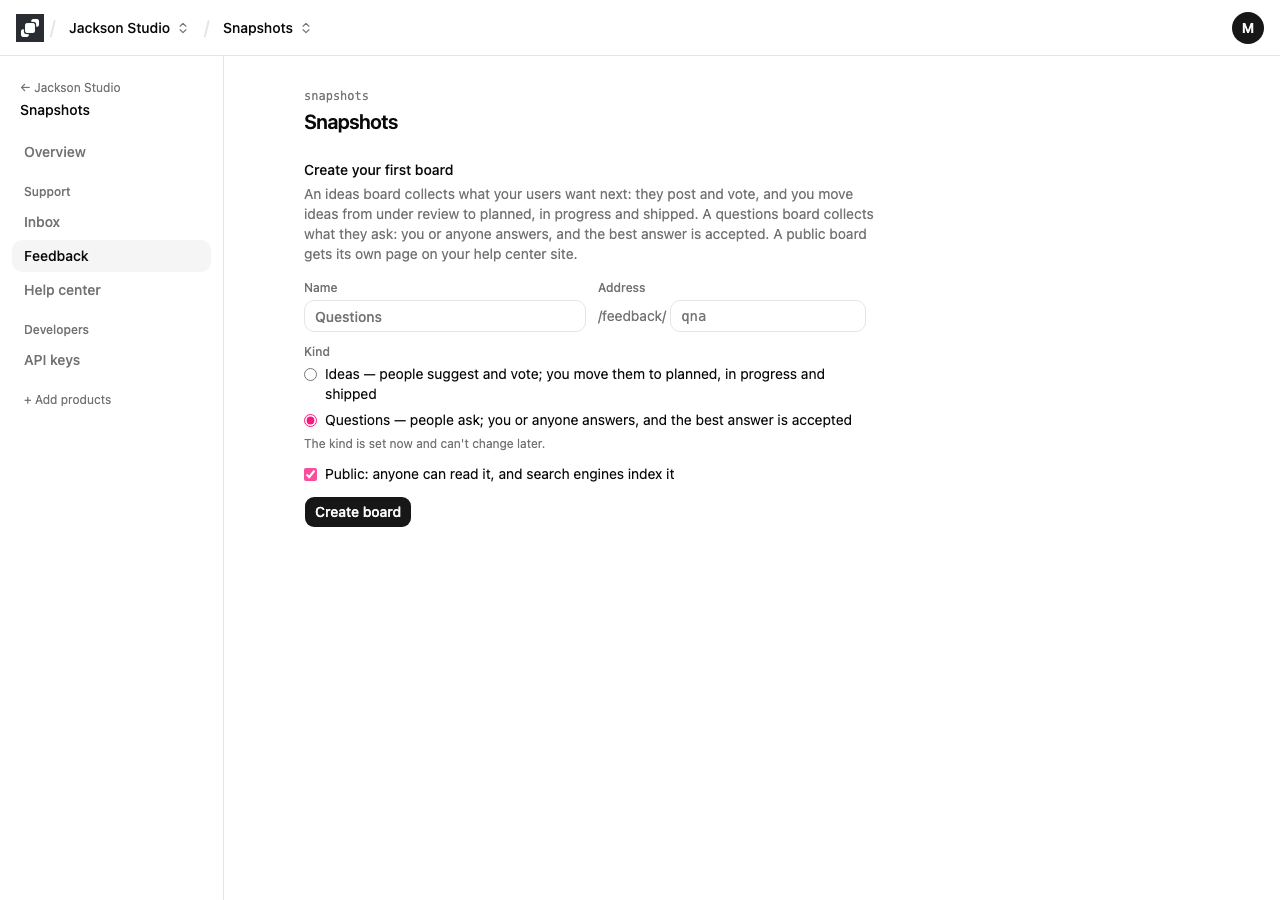
The kind is set when the board is created and can't change afterwards, because the two kinds have different statuses and different features. To change your mind, create another board. One help center can hold boards of both kinds, and the site's board list shows them all.
Like an ideas board, a questions board is public unless you make it private, and its page is on your help center site at /feedback/<board> (see Open a public feedback board for the address, your own domain and serving it under a path of your own site). Your users sign in to it from your app the same way, with the token described in Sign your users in from your app.
A questions board has no roadmap, no release policy and no GitHub links: questions don't ship. Those parts don't appear on it, and the roadmap page of a questions board is a 404.
2. Statuses
A question is Open, Answered or Closed.
A new question starts Open.
It becomes Answered when a comment is accepted as its answer, and goes back to Open when that answer is withdrawn.
Closed is yours to set, for a question you don't want answered, such as one that is off topic. You can't set Answered by hand, because a question is only answered when a comment answers it.
3. Accept an answer
Any public comment can be the answer: a reply from your team, or an answer from another user. Two people can accept it:
Your team, in the console. Open the question and choose Accept as answer under the comment.
The person who asked, on the public page, while signed in from your app. Only the asker sees the button. Another user, signed in or not, can't accept an answer to a question they didn't ask.
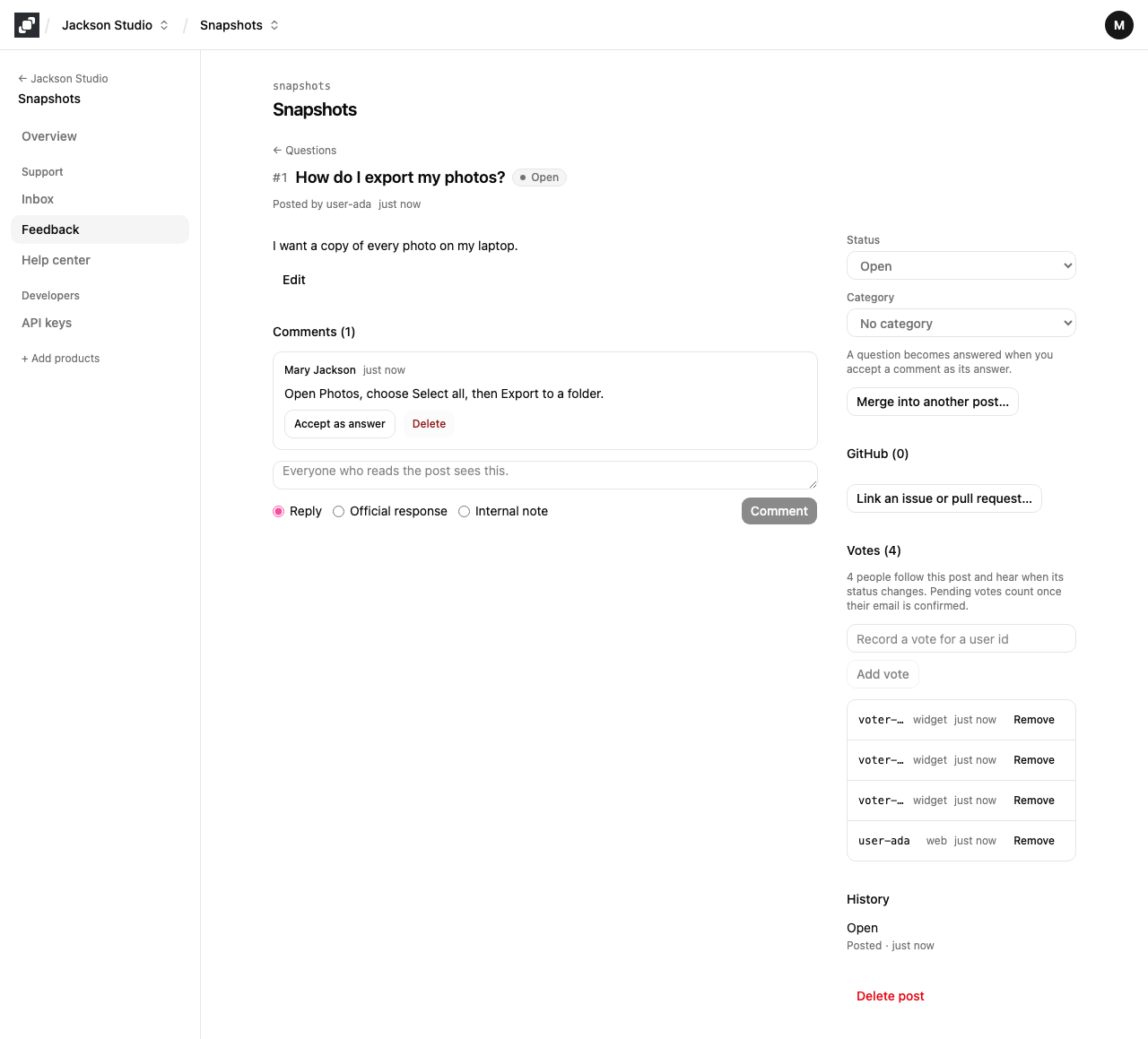
A question has one accepted answer. Accepting another comment moves the mark to it, and Unaccept withdraws it and opens the question again. An internal note can't be accepted, since visitors never see it. Deleting the accepted comment also opens the question again.
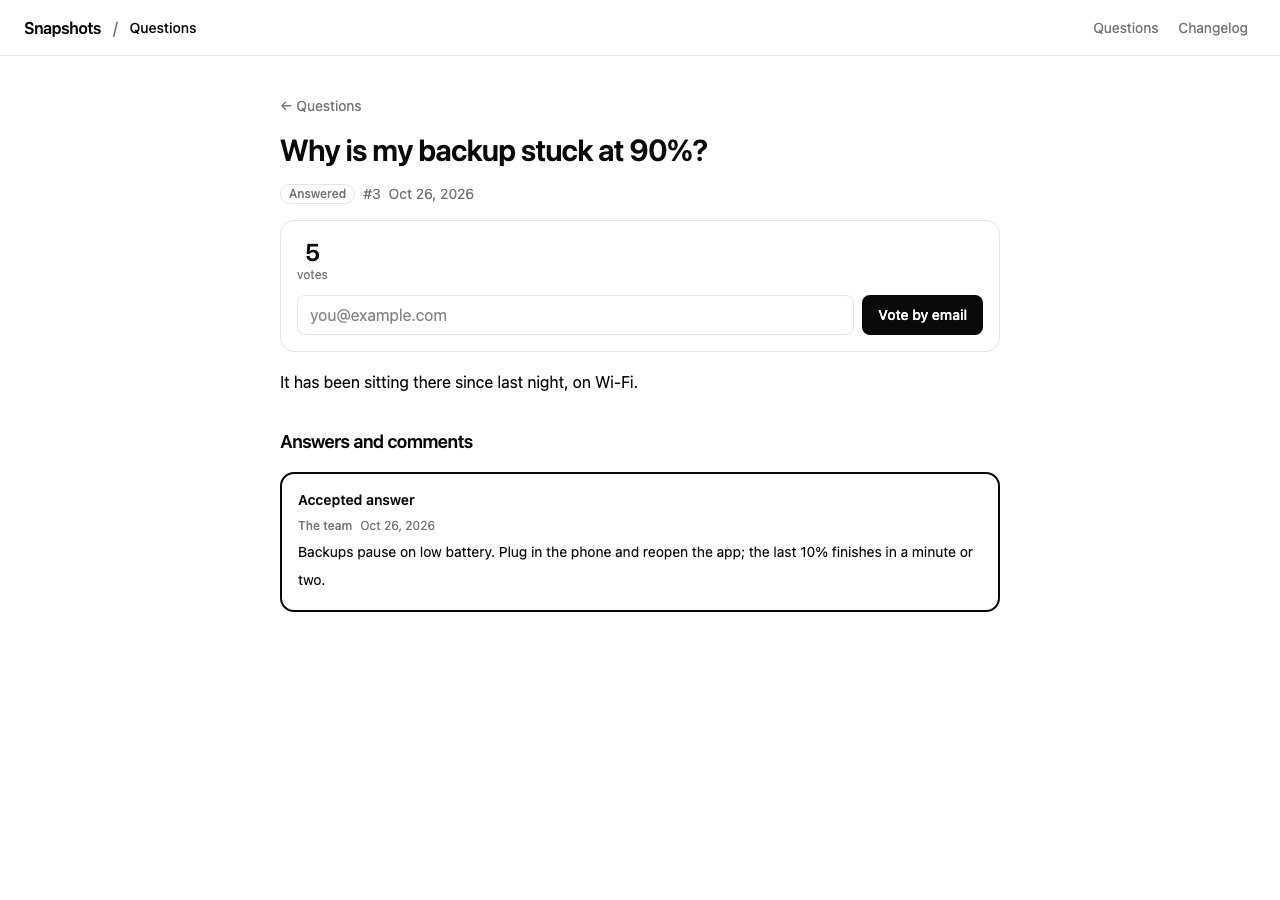
On the public page, the accepted answer comes first, in a frame of its own, ahead of the other comments.
4. What visitors see
The board lists its questions, most voted first (Top) or newest first (New). All, Open and Answered filter the list, and the search box finds words in the titles and the text of the questions. The filter and the search are kept in the address (?status=answered&q=export), so a filtered list can be shared as a link.
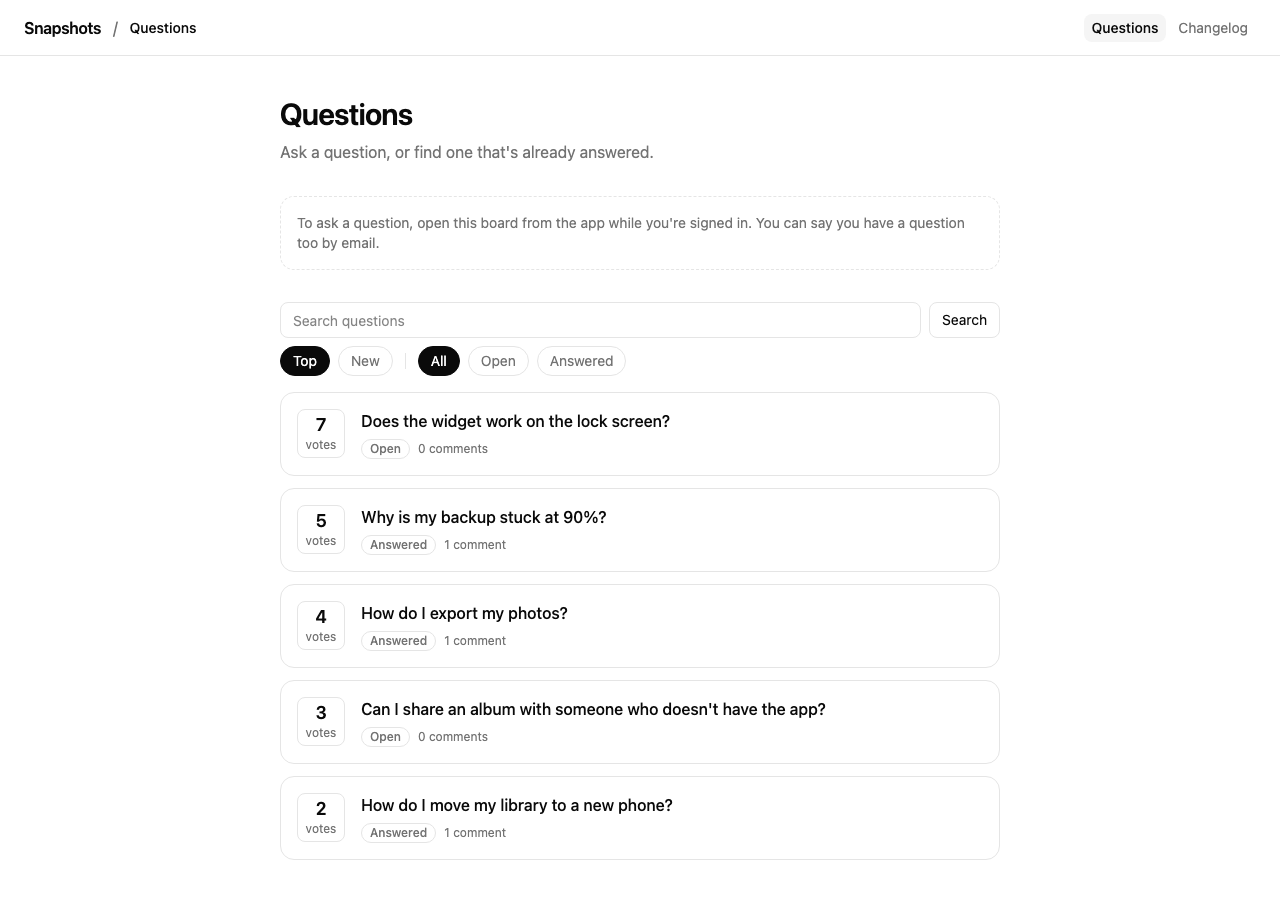
Votes on a question mean "I have this question too". They put the questions many people share at the top. Someone your app hasn't signed in can vote with an email address, as on an ideas board; they can't ask or comment.
A signed-in user asks with Ask a question. While they type, the board shows similar questions, so they can find an answer that already exists.
5. Answers in the help center's search
When your project has a help center and a public questions board, the help center's search also returns answered questions of that board, marked Answered question, next to your articles. One search box then covers your guides and your users' questions. A question ranks below an article that matches equally well, and open questions never appear, because they have no answer yet.
6. Moderate
Moderation is the same as on an ideas board:
Merge into another post… folds a duplicate question into the one to keep. Its votes and followers move there, and its address sends readers to the question it was merged into.
Delete on a comment removes it. Delete post removes a question with all its comments and votes. Both ask first, and neither can be undone.
An internal note stays in Mocco and is never shown on the board.
Every status change, deletion and import is recorded in the workspace's audit log.
7. From the CLI, the API and MCP
Everything above is also available to your tools. mocco feedback import brings another tool's questions in (see Import a board's history). Over MCP, mocco_feedback_board_create takes the kind, and mocco_feedback_comment_accept and mocco_feedback_comment_unaccept accept and withdraw an answer. Like every change over MCP, they ask for your confirmation first. The public API lets your app accept the signed-in asker's answer for them, with the same end-user token that posts and votes.