Serve your help center on your own site
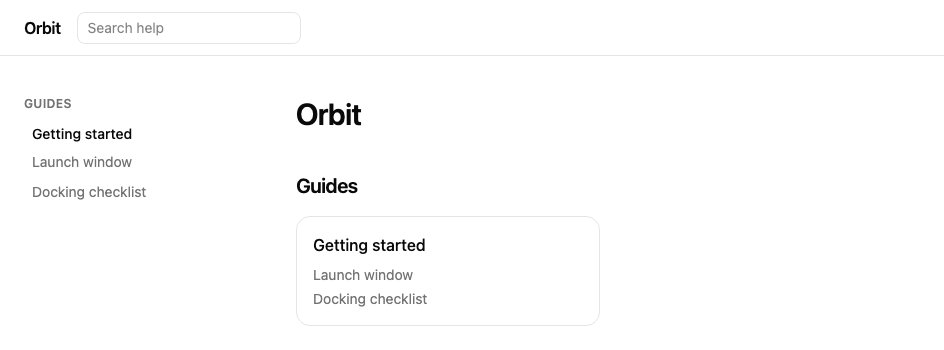
Your help center is at <address>.help.mocco.club from the start. If you'd rather have it on your own website, at example.com/docs, you can add a path to it. Your website forwards that path to Mocco, and Mocco shows the pages as if they were part of your site: links, page addresses, the sitemap and search results all use example.com/docs.
This is different from your own domain, which gives the whole help center its own host name. Use a path when your website already exists and you want the help next to it. You don't need a DNS record or a certificate, because your website already has both.
You can serve two kinds of things this way:
Whole help center: every page of it, under one path such as
/docs.A feedback board: one public board, under a path such as
/help.
You need to be an owner or admin of the workspace, and to be able to change your website's proxy or rewrite rules.
1. Add the path
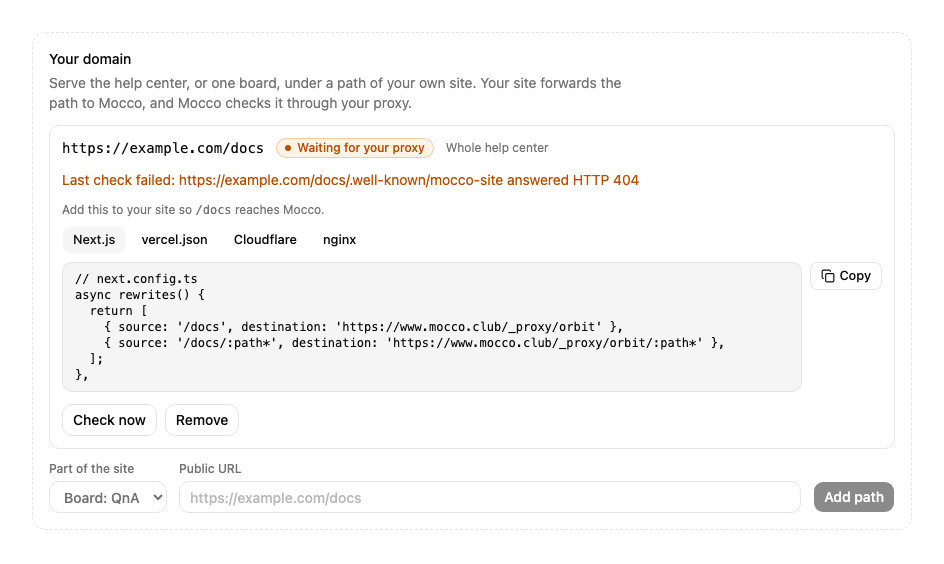
On the project's Help center page, find Your domain. Pick the Part of the site, type the Public URL (the address visitors will use, such as https://example.com/docs) and choose Add path.
The public URL needs https, a path of lowercase letters, digits, dots, hyphens and underscores, and no port, query or #. It can't be on a Mocco address, and a whole domain without a path can't be used.
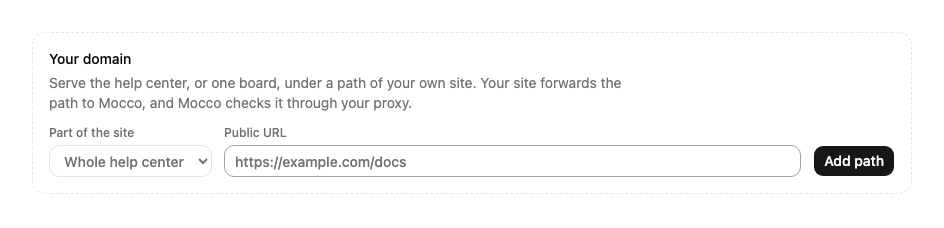
The path starts as Waiting for your proxy. Nothing changes on your site or on Mocco's yet.
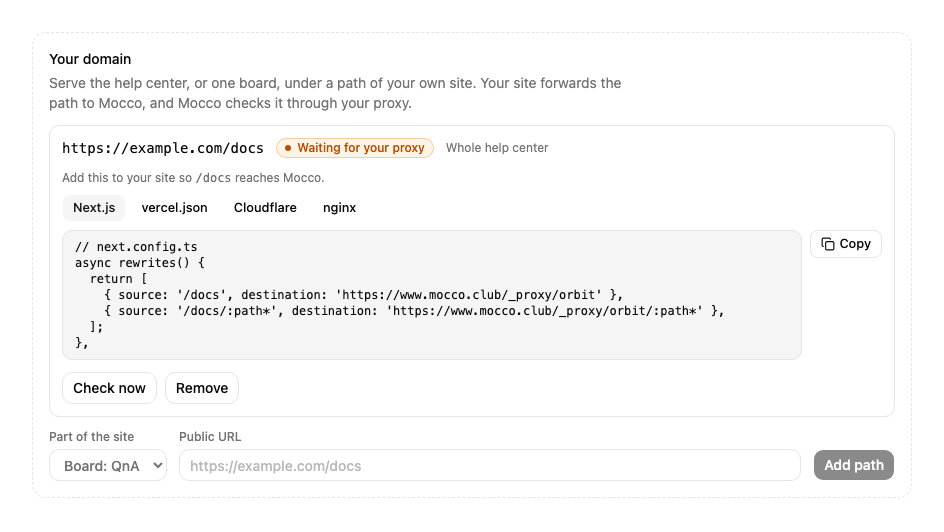
2. Forward the path to Mocco
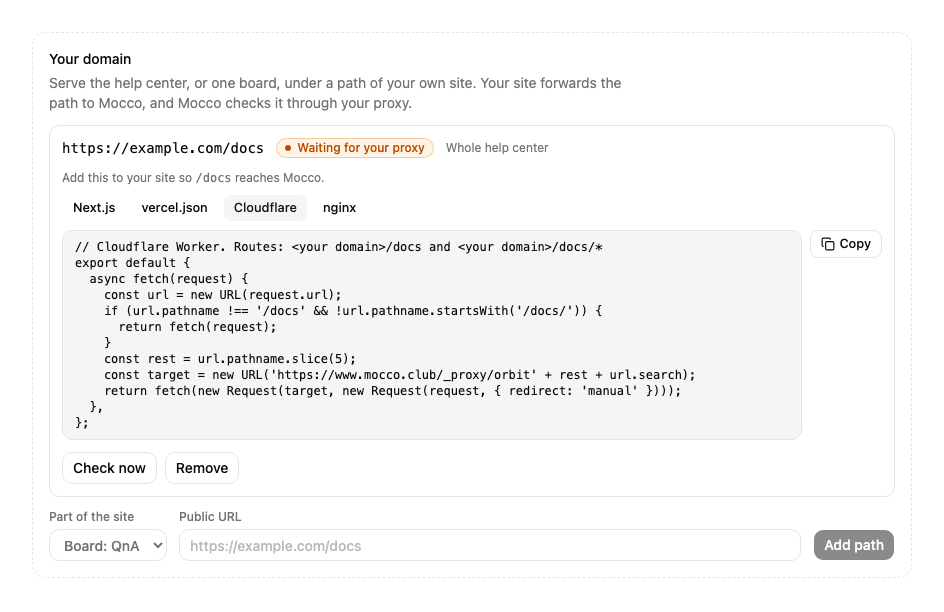
Below the path the console shows the setup to copy, with your own address filled in, for Next.js, vercel.json, Cloudflare and nginx. The four below are for https://example.com/docs and a help center whose address is orbit; the console writes yours.
Every setup forwards the path unchanged (/docs/en/search reaches Mocco as /_proxy/orbit/en/search) and keeps the query string.
Next.js
// next.config.ts
async rewrites() {
  return [
    { source: '/docs', destination: 'https://www.mocco.club/_proxy/orbit' },
    { source: '/docs/:path*', destination: 'https://www.mocco.club/_proxy/orbit/:path*' },
  ];
},
Vercel
// vercel.json
{
  "rewrites": [
    { "source": "/docs", "destination": "https://www.mocco.club/_proxy/orbit" },
    { "source": "/docs/:path*", "destination": "https://www.mocco.club/_proxy/orbit/:path*" }
  ]
}
Cloudflare
// Cloudflare Worker. Routes: <your domain>/docs and <your domain>/docs/*
export default {
  async fetch(request) {
    const url = new URL(request.url);
    if (url.pathname !== '/docs' && !url.pathname.startsWith('/docs/')) {
      return fetch(request);
    }
    const rest = url.pathname.slice(5);
    const target = new URL('https://www.mocco.club/_proxy/orbit' + rest + url.search);
    return fetch(new Request(target, new Request(request, { redirect: 'manual' })));
  },
};
nginx
location /docs/ {
  proxy_pass https://www.mocco.club/_proxy/orbit/;
  proxy_set_header Host www.mocco.club;
  proxy_ssl_server_name on;
}
location = /docs {
  proxy_pass https://www.mocco.club/_proxy/orbit;
  proxy_set_header Host www.mocco.club;
  proxy_ssl_server_name on;
}
Deploy the change to your website before the next step. A rule that changes the path (for example one that sends /docs/* to somewhere other than /_proxy/orbit/*) isn't supported, and the check below fails for it.
3. Check it
Choose Check now. Mocco asks your public URL for a small proof at /.well-known/mocco-site, which only Mocco answers, and only through your proxy. If it gets the right answer, the path becomes Active.
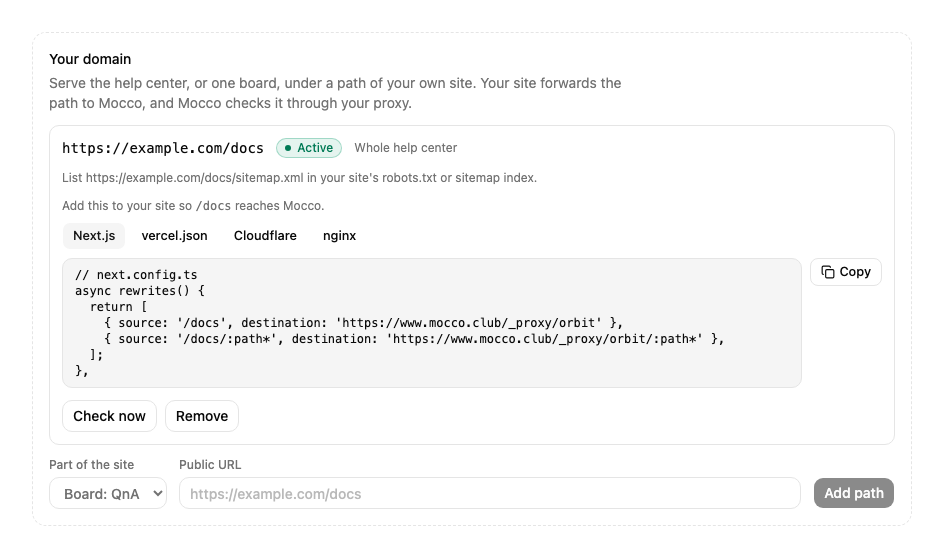
Pages are then served at your address. The help center's own address (<address>.help.mocco.club) sends visitors to your page with a permanent redirect, so old links keep working. The redirect can take a short while to start, because Mocco keeps recent answers for a moment.
When a check fails
A path that fails shows Last check failed with the reason, and stays as it was. These are the reasons:
<url> answered HTTP 404(or another status): the request reached a server that doesn't know the path. Usually your website hasn't deployed the rule yet, the rule doesn't match the path, or the proxy changes the path on the way. Compare it with the setup shown for the path.Couldn't reach <url>: <error>: your website didn't answer, or the connection or certificate failed. Open the address in a browser to see what visitors get.<url> answered a redirect to <address>; forward the path without redirecting: your website redirects the path instead of forwarding it, for example to add or remove a trailing slash, or to another host. Forward it as in the setup above.<url> answered another token; it forwards somewhere else: the path reaches a different help center, or an old rule is still in the way. Check which Mocco address the rule points at.<url> is already served by another help center: another workspace has this path active. Pick a different path.
Fix the proxy, then choose Check now again.
Mocco keeps checking
Once a day Mocco checks every active path again. If two checks in a row fail, the path becomes Broken and the pages go back to the help center's own address until a check passes again. A single failed check changes nothing. After a fix, Check now doesn't wait for the next daily check.
Things to know
Remove the path before you move the proxy. If you later point your proxy at the help center's own address (<address>.help.mocco.club) while the path is still active, visitors loop between the two addresses until two daily checks fail. Don't do that. To stop serving the help center on your site, remove the path in the console first (Remove), and then change the proxy. Removing a path sends the pages back to the help center's own address within about a minute (Mocco rereads your paths every 30 seconds, and a page can be kept for up to 60 seconds).
Don't cache the pages longer than Mocco does. If your proxy or CDN caches HTML, keep it to what the pages' own Cache-Control headers say, or don't cache it. What you publish shows on your site only as fast as your proxy lets it through.
Add the sitemap to your site. Mocco can't change your site's robots.txt or root sitemap. For a whole help center, list https://example.com/docs/sitemap.xml in your robots.txt (Sitemap: https://example.com/docs/sitemap.xml) or in your sitemap index. It names your public addresses, in every language the help center offers. The console reminds you under an active path.
Search engines see your address only. The pages name your public URL as their address, and Mocco's own address for the proxy (/_proxy/… on www.mocco.club) is closed to search engines in its robots.txt.
Feedback boards under a path
A board path works the same way: pick Board: <name> as the part of the site, add a public URL such as https://example.com/help, and set up the proxy with the setup the console shows. Only public boards can be added, and a path can't sit inside another path of the same website.
On your site, anyone can read a board without signing in. Voting, posting and commenting need to know who the person is, and that works as it does on the help center's own address: your server signs a short-lived token for the signed-in user, and your app links to the board with ?token=… (the public board shows how). The board keeps the token for that browser tab and takes it out of the address without reloading the page. Its calls to Mocco carry the token in a request header, never in a cookie, so nothing depends on cookies between your domain and Mocco.
From an agent or a script
The same four actions (list, add, check and remove a path) are available to agents over MCP, as the tools mocco_help_site_mounts_list, mocco_help_site_mount_add, mocco_help_site_mount_verify and mocco_help_site_mount_remove, over the API with a help:write key, and in the CLI as mocco help mount add, verify, list and remove.