History and rollback
Every change to a folder of secrets is kept as a numbered commit: adding, changing and deleting secrets, importing a file, and reverting or rolling back. History shows keys, versions and fingerprints, never values, so any member of the workspace can browse it without revealing anything.
See a folder's history
On the project's Secrets page, choose the environment's tab and the folder in the tree.
Choose History.
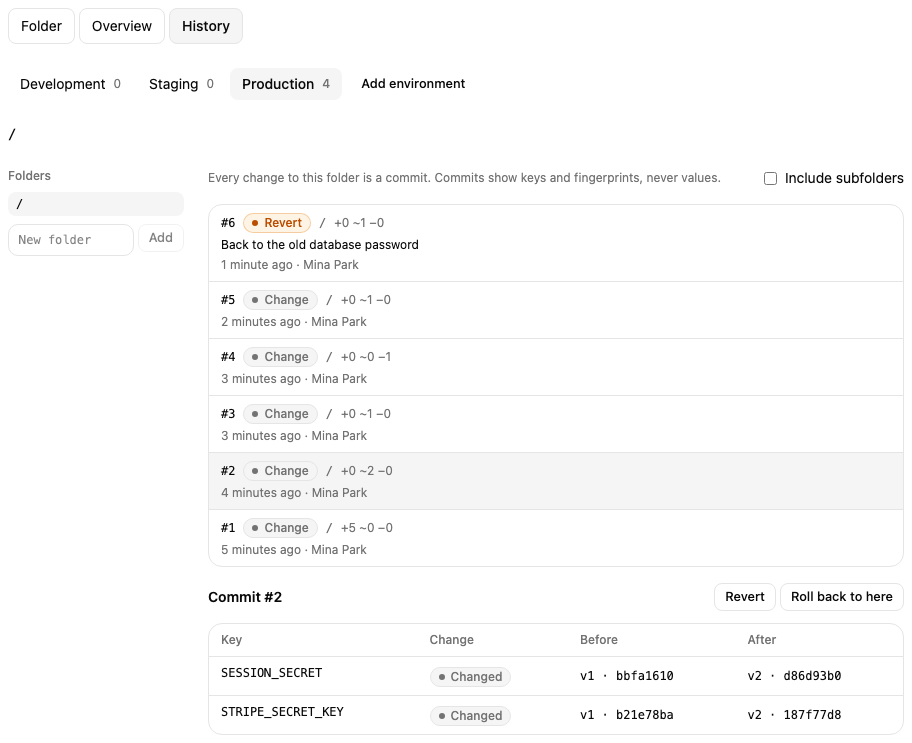
The commits are listed newest first. Each shows its number, whether it was an ordinary change, a
revert or a rollback, the folder, how many secrets were added, changed and deleted (+1 ~2 −0), its
note if it has one, and who made it when. Tick Include subfolders to see the commits of the
folders below as well. Older commits loads the next page.
Choose a commit to see what it changed: each key with Added, Changed or Deleted, and the version and fingerprint before and after. Equal values share a fingerprint, so you can tell whether a value went back to an earlier one without revealing it.
Revert a change
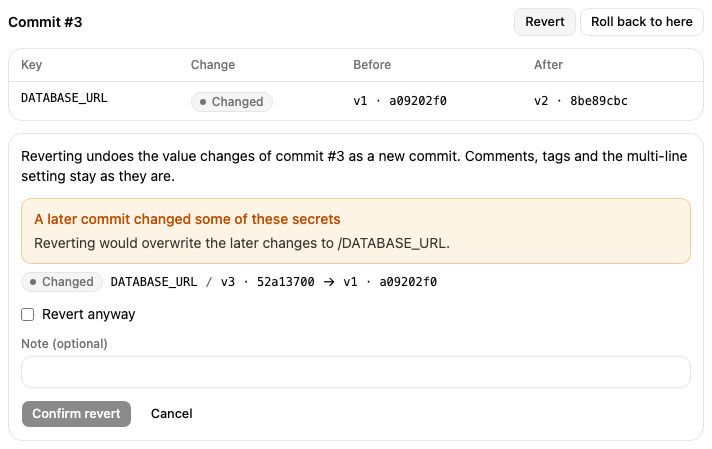
Reverting undoes the value changes of one commit as a new commit. Comments, tags and the multi-line setting stay as they are.
Choose the commit, then Revert.
Check the list of what will change. Each key shows the version it has now and the version it goes back to.
If a later commit changed some of the same secrets, they are named, and reverting would overwrite those later changes. Tick Revert anyway to go ahead, or cancel.
Optionally add a Note, such as why you reverted.
Choose Confirm revert.
Roll a folder back
Rolling back restores the folder's secrets as they were right after a commit: values that changed since go back, secrets added since are deleted, and secrets deleted since come back. It is recorded as a new commit, so the history after that point stays and you can roll forward again.
Choose the commit to go back to, then Roll back to here.
Tick Include subfolders to restore the folders below too.
Check the list of what will change, optionally add a Note, and choose Confirm rollback.
If the folder already matches that point, nothing changes and no commit is made.
See a secret's earlier values
In the folder view, choose History on the secret's row.
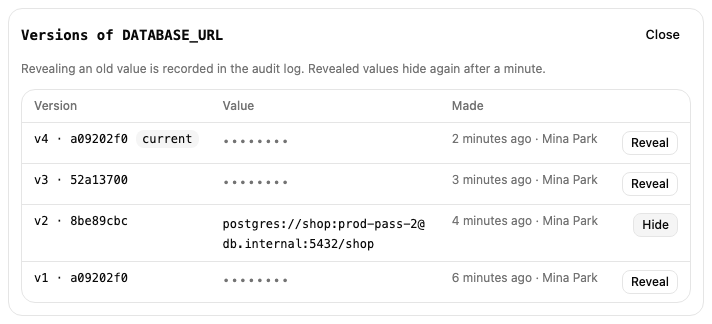
The secret's versions are listed newest first, with their fingerprints and who made them when. The current one is marked current.
Choose Reveal on a version to see its value. It hides again after a minute, or when you choose Hide.
Each reveal of an earlier value is recorded in the workspace's audit log with the key and version numbers, never the value.
A deleted secret keeps its versions: set the same key again, revert the commit that deleted it, or roll the folder back to bring it back.