Sync secrets to Vercel
Keep your secrets in Mocco and let Mocco write them to your Vercel project's environment variables. You set it up once. After that, every change you make to the folder in Mocco reaches Vercel by itself, so nobody copies values into Vercel by hand.
The sync only pushes. Mocco is the source of truth: if someone edits a synced variable in Vercel, the next run writes Mocco's value back.
Connect Vercel
Workspace owners and admins open the project's Secrets, choose Syncs and select Connect Vercel under Connections.
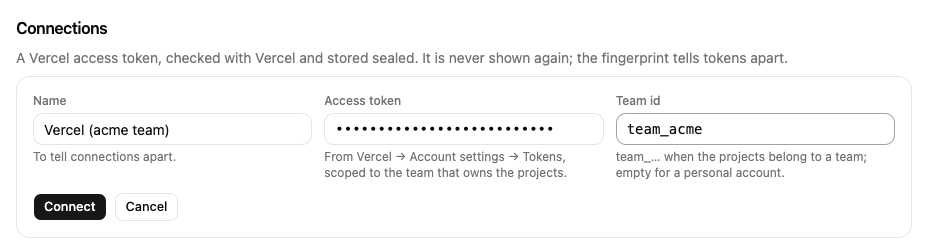
Name tells connections apart, for example
Vercel (acme team).Access token comes from Vercel under Account settings → Tokens. Give it the scope of the team that owns the projects you want to sync.
Team id is the team's id (
team_…) when the projects belong to a team. Leave it empty for a personal account.
Mocco checks the token with Vercel before it saves it, then stores it sealed. Nobody can see the token again, including you. The list shows a short fingerprint so you can tell tokens apart. To change a token, add a new connection and remove the old one.
Sync a folder
Choose the environment whose secrets you want to push, then select Sync a folder.
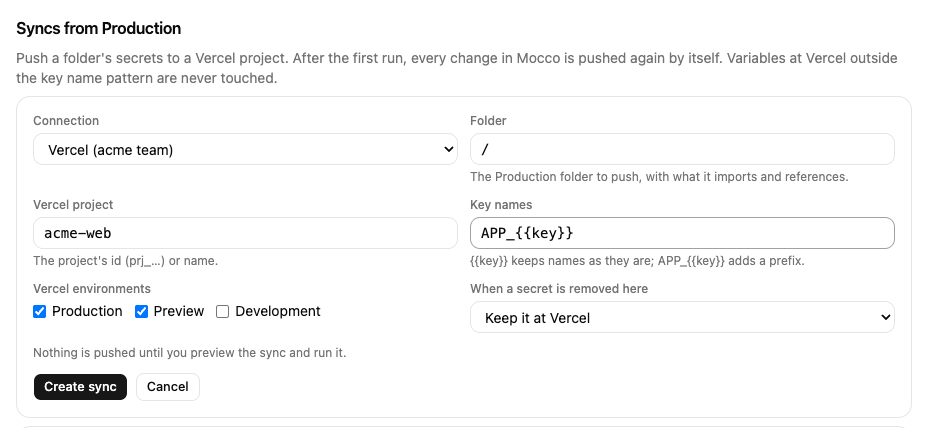
Connection is the Vercel connection to push through.
Folder is the folder to push, for example
/or/web. Mocco pushes the folder's effective values, with what it imports and the references in it already resolved.Vercel project is the project's id (
prj_…) or its name.Vercel environments are the Vercel environments to write: Production, Preview and Development.
Key names sets how keys are named in Vercel.
{{key}}keeps them as they are.APP_{{key}}turnsDATABASE_URLintoAPP_DATABASE_URL.When a secret is removed here decides what happens in Vercel when you delete a secret from the folder: Keep it at Vercel or Delete it at Vercel.
Creating the sync pushes nothing yet. The sync shows Not run yet until you run it.
Preview, then run
Select Preview on the sync. Mocco lists which variables the run would create, update and delete in Vercel, by name. Values are never shown. Keys that couldn't be resolved are listed too, and they are skipped.
When the list looks right, select Run now. From then on, every change to the folder in Mocco, including a revert or a rollback, starts a run a few seconds later.
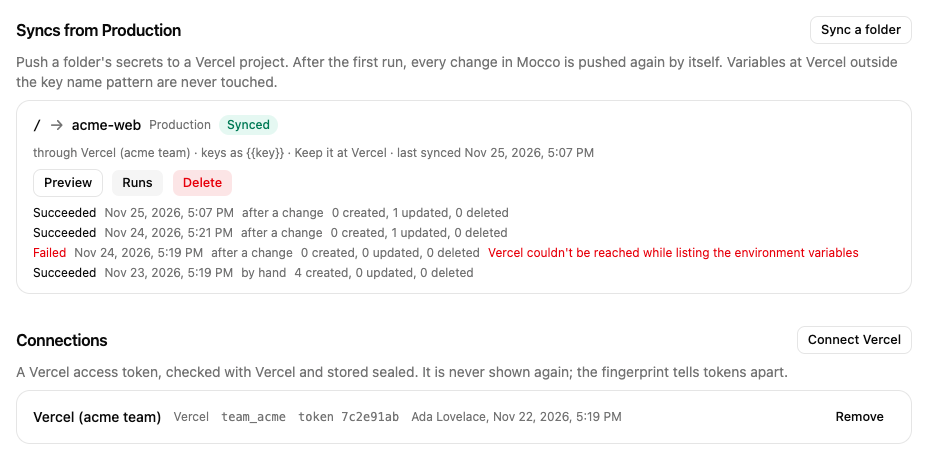
Select Runs to see the latest runs: when each one ran, whether it ran by hand or after a change, and how many variables it created, updated and deleted.
What a sync never touches
Variables whose names don't match the key names. With
APP_{{key}}, a variable calledANALYTICS_IDis never changed. This lets several syncs, or your own variables, share one Vercel project.Variables for Vercel environments the sync doesn't write.
Variables the sync didn't create. Even with Delete it at Vercel, Mocco only deletes variables it wrote itself.
When a run fails
If Vercel refuses a run, for example because the token was revoked or the project was renamed, the sync shows Failed with Vercel's message. Temporary problems, like Vercel being busy, are retried by themselves. The next successful run clears the failure.
A sync that starts failing also sends a Secrets sync failed notice to the channels that receive Mocco events. See Mocco events.
Changing a sync's Vercel environments, key names or delete setting puts it back to Not run yet, so you preview the new result before it runs. Deleting a sync leaves the variables it already wrote in Vercel.
Who can do what
Every member can see the syncs, their status and their runs. Only owners and admins can connect Vercel and create, run or delete a sync, and only for folders they can read. Agents can do the same through MCP with the mocco_secrets_syncs_* tools: running one shows the same preview and asks you to confirm.