Deep links overview
Deep links are short links such as https://acme.<link domain>/spring that you put in emails, ads, QR codes and social posts. Each visitor is sent where they can continue: iPhone users to your app's App Store page or your iOS web page, Android users to Google Play or your Android web page, and everyone else to your website.
When your app is installed, a link can open it straight away: see Open the app from links. Otherwise a link lands on a store page or a web page you chose, and every visit is counted (see Clicks).
1. Turn on Deep links
On your workspace's Products page, turn on Deep links. The project then has a Deep links page.
2. Register your apps
A link sends phones to your apps' store pages, so register the apps first: on the project's Overview page, under Apps, add an iOS app with its numeric App Store ID and an Android app with its Application ID (and its Play package if it differs). See Workspaces and projects.
A project with no iOS or Android app can still have links, as long as each one has a web fallback (step 5).
3. Choose your link host
On Deep links, open Settings and enter a Subdomain under Link host, such as acme, then Save. Your links live on acme.<link domain>. Only owners and admins can change it.

Choose carefully: once the project has a link, the subdomain is locked, because changing it would break every link you already shared or printed.
To serve your links on a domain you own, such as go.example.com, see Use your own domain for links.
4. Create a link
On Deep links, choose New link. Enter the Path in the app the link stands for, such as /products/42. Optionally give it a Slug (the part after the host; leave it empty and Mocco makes a short one), a Label, a Campaign, Params and an expiry date (Expires). Then choose Create link.
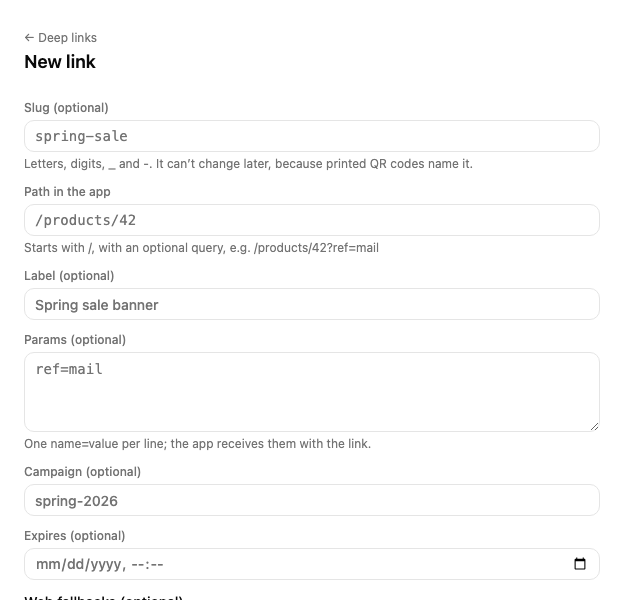
The link's short URL is shown with a copy button. The slug can't change later, so a printed QR code keeps working.
Params whose names start with utm_ (such as utm_source=qr) are added to your web fallback URLs when someone is sent there, so your analytics see where visitors came from.
Your server and your app can create links too; see Create links from your server or app. To open the linked screen after someone installs your app from a link, see Deferred deep links.
5. Send people without the app to your website (optional)
Under Web fallbacks (optional) a link can name a page for iOS, a page for Android, and a page for everyone else. To keep links from sending people to sites that aren't yours, a web fallback must be on a web destination you have proven you own: in Settings → Web destinations, add the exact host (such as www.acme.com), publish the TXT record it shows, and verify it.
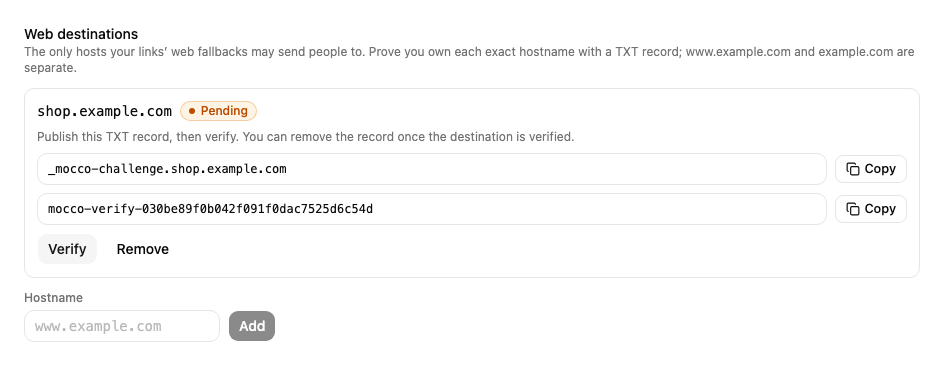
Where each visitor goes
| Visitor | Goes to the first of |
|---|---|
| iPhone and iPad | the iOS web fallback, your App Store page, the web fallback |
| Android | the Android web fallback, your Google Play page, the web fallback |
| Computers and anything else | the web fallback |
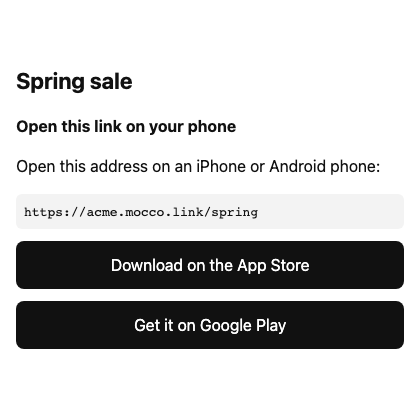
When none of these is set, the visitor gets a small page instead of being redirected: your link's label (or project name), a button for each store page you have, and on a computer the short URL and its QR code to open on a phone.
On an iPhone, a visitor headed to your App Store page first sees a short page with Get the app (which copies a one-time code so your app can open the link after the install) and Open in app. See Deferred links on iOS. To skip it for a link, set On iOS to Straight to the App Store.
An iPad in its default desktop mode is treated as a computer.
Link previews (Slack, KakaoTalk, X and others) get the link's share preview instead (below).
Nothing in the address someone types after the slug changes where they go, so nobody can reuse your link to send people elsewhere.
Links in KakaoTalk and other apps
KakaoTalk, NAVER, Instagram, Facebook and Line open links in their own built-in browser, which often can't open your app or a store. Mocco handles these visitors on phones:
KakaoTalk and Line: Mocco asks the app to reopen the link in the phone's own browser, using the way each app documents for this. From there the visitor goes where they normally would.
Other apps on Android: the visitor sees a page with Open the app. With your app installed it opens the app; without it, it goes to your Google Play page and the app can still open the link after the install.
Other apps on iPhone: the visitor sees the iPhone page with Get the app, plus how to open the link in Safari and a Copy link button.
Web fallbacks are used as everywhere else. These behaviours haven't all been checked on every app yet; test your links in the apps your users share them in before a campaign.
Share previews and QR codes
When someone shares a link in KakaoTalk, Slack, X, Facebook, Discord, LinkedIn or iMessage, the app shows a card for it. On a link's page, Share preview decides what the card says:
Title. Left empty, the card uses the link's label, or your project name.
Description. A line under the title; left empty, there is none.
Image. Mocco's card draws the title on your project's name, with nothing to upload. Your own image takes a PNG, JPEG or WebP up to 5 MB; 1200 × 630 shows best. Mocco never fetches an image from another site.
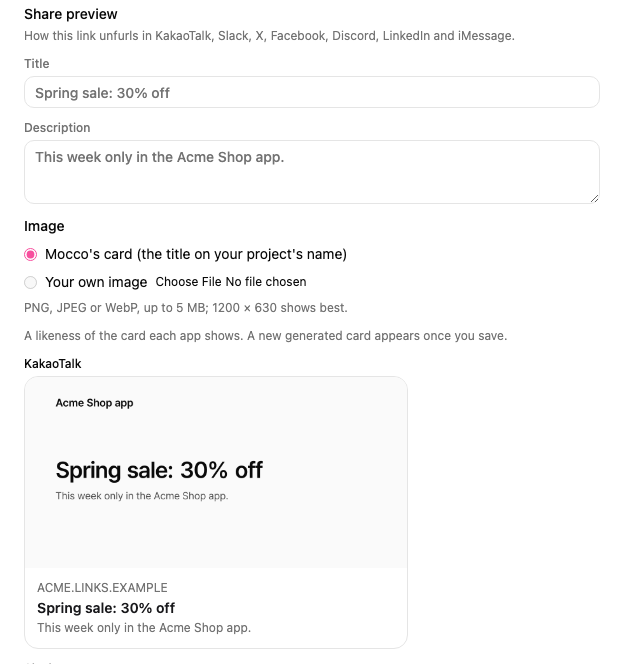
Under the fields, a likeness of the KakaoTalk, Slack and X cards shows how it will look. A new Mocco card appears once you save. Apps keep a card for a while after they first fetch it, so a change can take time to show where the link was already shared.
Every link also has a QR code on its page, which opens the link's short URL. Download SVG stays sharp at any print size; Download PNG is for slides and chats. On a computer, the page a link shows has the same code to scan with a phone.
An AI assistant connected to Mocco can set a link's share title and description, switch its image back to Mocco's card, and give you its QR code. Uploading an image is done in the console.
Clicks
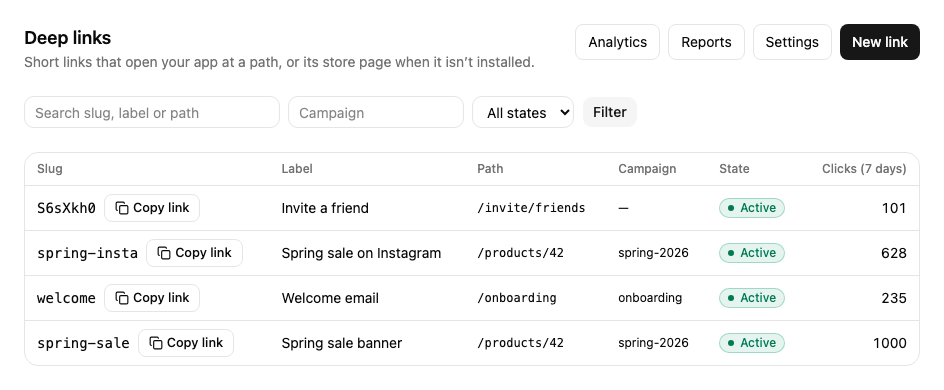
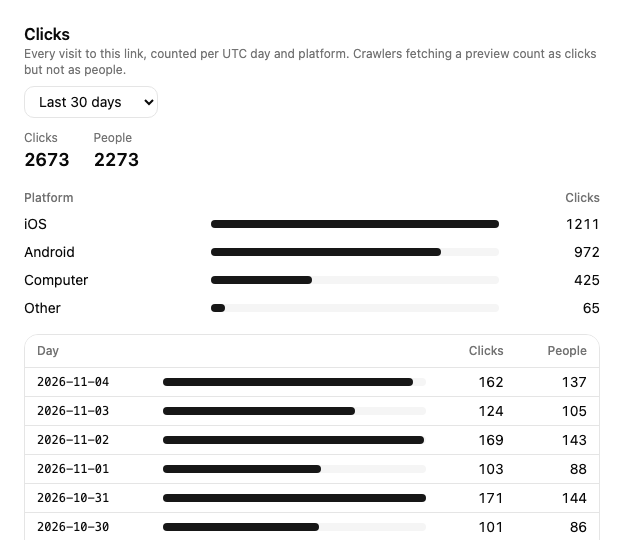
Every visit to a link is counted, per day (UTC) and platform: iPhone, Android, computer and other. The Deep links list shows each link's clicks over the last 7 days, and a link's page shows its Clicks: the total, how many were people, the split by platform and every day of the range. Choose the range (the last 7, 30, 90 or 365 days) above the numbers; the page's address keeps it, so a link you share shows the same range.
People leaves out link previews (Slack, KakaoTalk, X and others), which fetch a link to show its card. They still count in Clicks.
Mocco never keeps a visitor's IP address or browser details. It keeps the platform, the country the network reports, and the website a visitor came from (its name only, never the page).
Each visit is kept for 90 days; the daily counts stay as long as the project does.
Counts appear within a few seconds of a visit.
You can also ask an AI assistant connected to Mocco for a link's or the project's clicks.
Disabling and expiring links
A link can't be deleted, so its slug never comes back pointing somewhere else. On a link's page, Disable link stops it: visitors see "This link has ended". Enable link turns it back on. A link past its expiry date shows the same page.
A change takes effect within a minute everywhere.
Reports of abused links
Every page a link host shows for a link ends with Report this link, so anyone who finds a link used for phishing, malware or spam can tell you. Reports wait under Deep links → Reports, with the reason, what the person wrote and an email if they left one. Any member can:
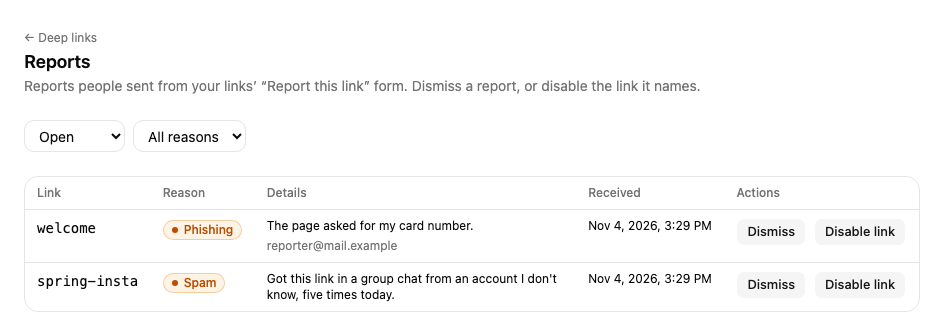
Dismiss a report that needs nothing done.
Disable link to stop the reported link. Every other open report on that link is resolved with it, and the link's page says it was disabled from a report.
To be told when a link is reported, add a notification rule for links.abuse.reported on one of your channels. It arrives once a day per link, however many reports come in.
Unsafe web fallbacks
Where Mocco has a URL reputation service set up, the web pages your links send people to are checked when you save a link and again every night:
Saving a web fallback that is flagged for malware, phishing or unwanted software is refused, and the message says what was found.
A link that was clicked in the last 30 days and whose web fallback becomes flagged is disabled automatically. Its page says why. Change its web fallback, then Enable link: enabling checks the address again.
Each link shows its destination check: Safe, Unsafe, or Not checked (no web fallback, no reputation service, or no answer in time). Store pages are never checked.
To be told when a link is disabled this way, add a notification rule for links.link.auto_disabled.
Pausing all links
If many links are being abused at once, owners and admins can stop all of them: in Deep links → Settings, choose Pause all links and, if you like, write a reason only your team sees. Every link then shows "This link is temporarily unavailable" until you choose Resume links. People can still report links while they are paused.