
Connect Discord
Mocco posts through its own Discord bot. You install the bot in your server once, then choose the channels it posts to. Only owners and admins of the Mocco workspace can do this.
1. Install the bot
In Mocco, open Notifications and stay on the Channels tab.
Click Connect Discord. Mocco sends you to Discord.
On Discord, pick the server and approve the bot. Discord only lets you add a bot to a server where you are allowed to manage it; ask a server admin if yours is not in the list.
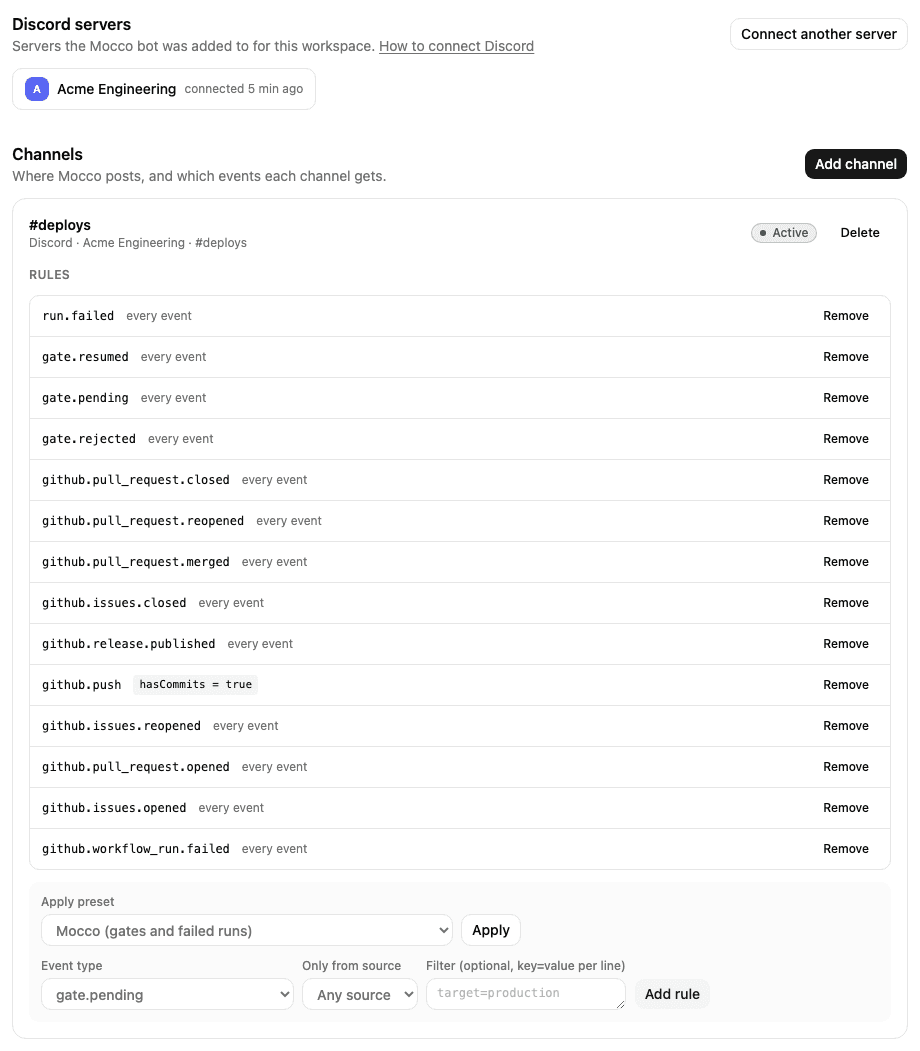
Discord sends you back to Mocco. The server now appears under Discord servers.
The bot asks for four permissions: View Channel, Send Messages, Embed Links and Read Message History. Mocco posts each notification as an embed, so all four are needed.
If Mocco says Discord is not available, Discord has not been set up for your Mocco deployment yet. Ask whoever runs it.
If you come back from Discord with an error, the install did not finish: you cancelled it, or the link was more than 10 minutes old. Click Connect Discord again.
2. Add a channel
Click Add channel.
Choose the Server, then the Channel. The list shows the text and announcement channels the bot can see right now.
Optionally, give it a Label. By default it is the channel name, like
#alerts.Click Add channel.
Mocco posts a test message, Mocco is connected, and shows the result right away:
Test message sent: the channel works. Add rules next.
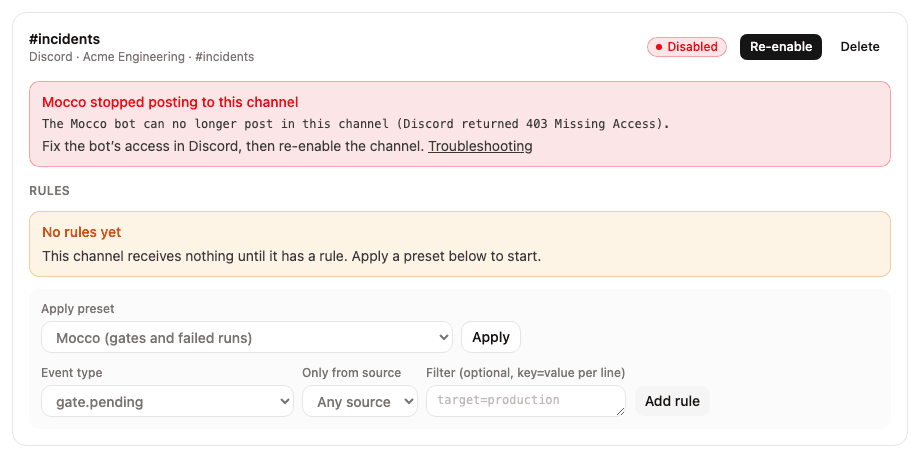
An error from Discord: the bot cannot post there yet. The message says what Discord answered. Fix it as described below, then click Re-enable.
Give the bot access to a private channel
A private channel is hidden from everyone who has not been given access, and that includes the
Mocco bot. The channel may be missing from the Channel list, or the test message fails with
Missing Access (code 50001) or a missing-permissions error (code 50013).
In Discord:
Right-click the channel and choose Edit Channel, then Permissions.
Click Add members or roles and add the Mocco bot (or its role).
Allow View Channel, Send Messages, Embed Links and Read Message History.
Save your changes.
Back in Mocco, click Re-enable on the channel, or add it if it was not listed before.
Channel permissions override server roles. If the bot's role may send messages but the channel denies it, the bot cannot post in that channel. Denying View Channel also blocks everything else in that channel.
Disabled channels
When Discord tells Mocco the bot cannot reach a channel (it lost access, or the channel was deleted), Mocco marks the channel Disabled, shows Discord's reason, and stops posting to it. Nothing is sent to a disabled channel until you fix the cause and click Re-enable. Mocco then checks the channel again and posts a new test message. If the bot still cannot post, the channel stays disabled with the new reason.
If the bot was removed from the server, or removed and added back, Mocco asks you to connect Discord again. Click Connect Discord, then add your channels again.
3. Choose what each channel gets
A channel only receives the events its rules ask for. Each channel card has a Rules section.
Apply a preset. Choose a preset and click Apply:
| Preset | Adds rules for |
|---|---|
| Mocco | gate.pending, gate.resumed, gate.rejected, run.failed |
| Sentry | sentry.issue.created |
| Vercel | vercel.deployment.succeeded for production only, vercel.deployment.error, vercel.deployment.canceled |
| GitHub | github.push with commits; pull requests opened, reopened, merged and closed; issues opened, reopened and closed; github.release.published; github.workflow_run.failed |
For the Sentry, Vercel and GitHub presets you can also pick a source, so the rules only take events from that source. Applying a preset twice adds nothing new.
Add a rule by hand with Add rule:
Event type: an exact type like
vercel.deployment.error, or a whole family ending in.*, likegithub.pull_request.*orgate.*.Only from source (optional): only events from that source.
Filter (optional): one
key=valueper line. Every line must match the event exactly, for exampletarget=productionorbranch=main. The keys you can filter on are listed on each source's page and on Mocco events.
Click Remove next to a rule to delete it. Deleting a channel also deletes its rules; its past activity stays visible.
Next
Add a source: Sentry, Vercel or GitHub. If a message does not arrive, open Activity and see Troubleshooting.