
Feature flags quickstart
Mocco's feature flags work with OpenFeature, so your code calls the standard OpenFeature API and Mocco is the provider behind it. Your server downloads its environment's rules and evaluates every flag in memory: an evaluation never waits on the network, and the server keeps using the last rules it received if Mocco can't be reached.
1. Turn on feature flags
A workspace member turns on Feature flags on the workspace's Products page. The project then shows a Feature flags page.
2. Create environments and a flag
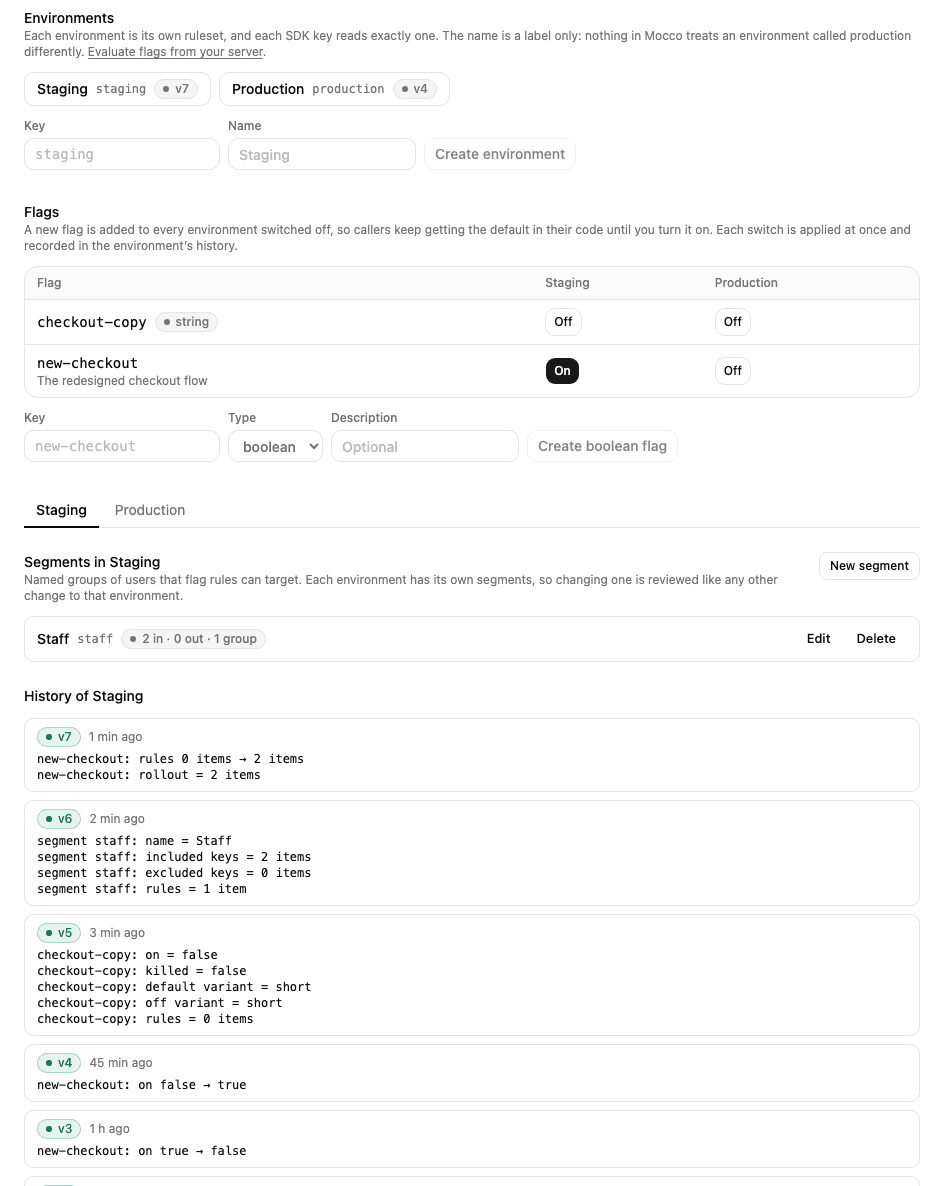
On the Feature flags page, create an environment for each place your code runs, for example staging and production. An environment is just a separate set of rules: its name means nothing special to Mocco.
Then create a flag, for example new-checkout. A flag is boolean by default; choose string, number or json to give it named variants instead, such as { "short": "Pay", "long": "Pay securely" }. A new flag is added to every environment switched off, so your code keeps using its own default until you switch the flag on. Each change applies at once and is recorded in the environment's history, with who changed what.
3. Target users
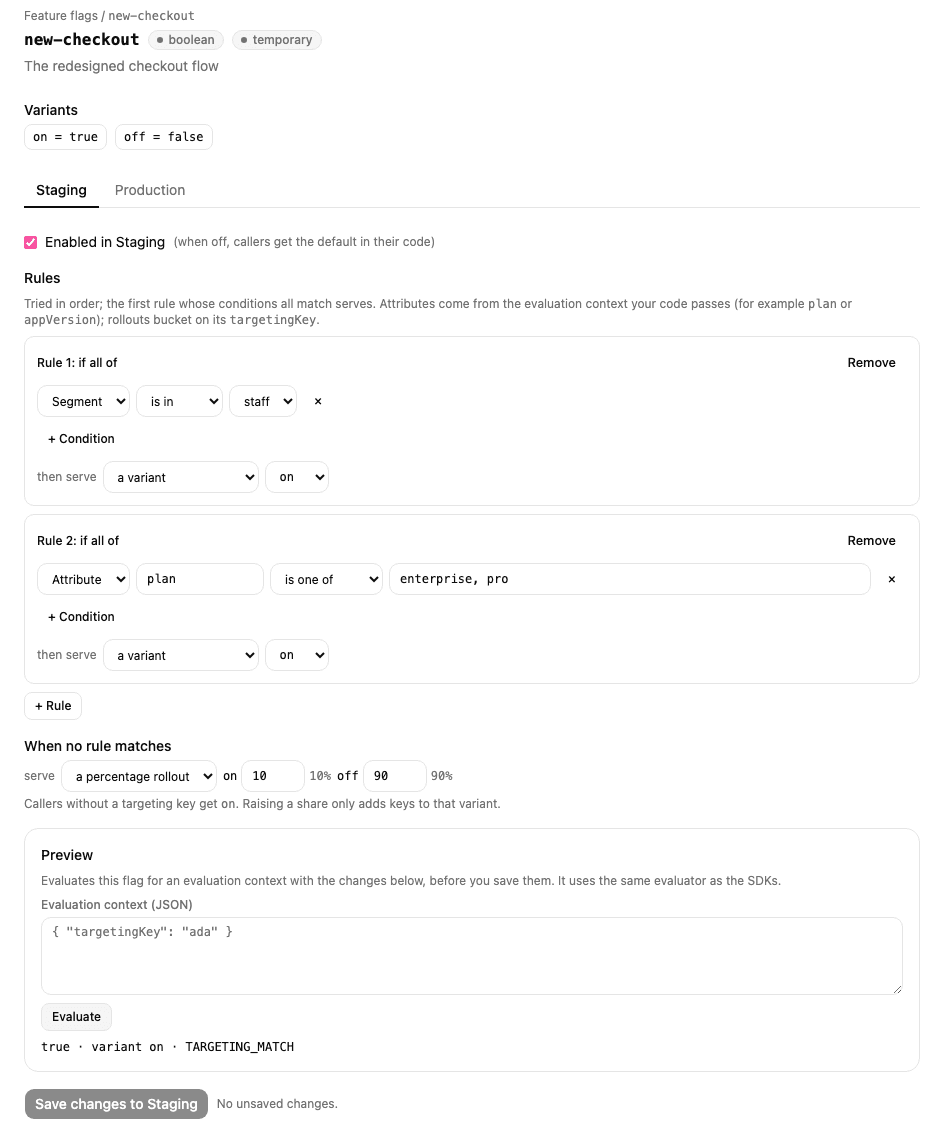
Open a flag to decide who gets which variant, per environment:
Rules are tried in order, and the first rule whose conditions all match serves its variant. A condition compares an attribute of the evaluation context your code passes (
plan is one of pro, enterprise,appVersion version ≥ 2.1.0,email ends with @acme.com) or checks membership of a segment.Segments are named groups for an environment, defined on the Feature flags page: targeting keys that are always in or never in, plus attribute conditions.
When no rule matches, the flag serves a variant or a percentage rollout. Rollouts are bucketed on the context's
targetingKey, so a user always lands in the same bucket, and raising a share from 10% to 20% only adds users.
Preview evaluates your unsaved changes for any context before you save, with the same evaluator the SDKs use.
4. Protect an environment
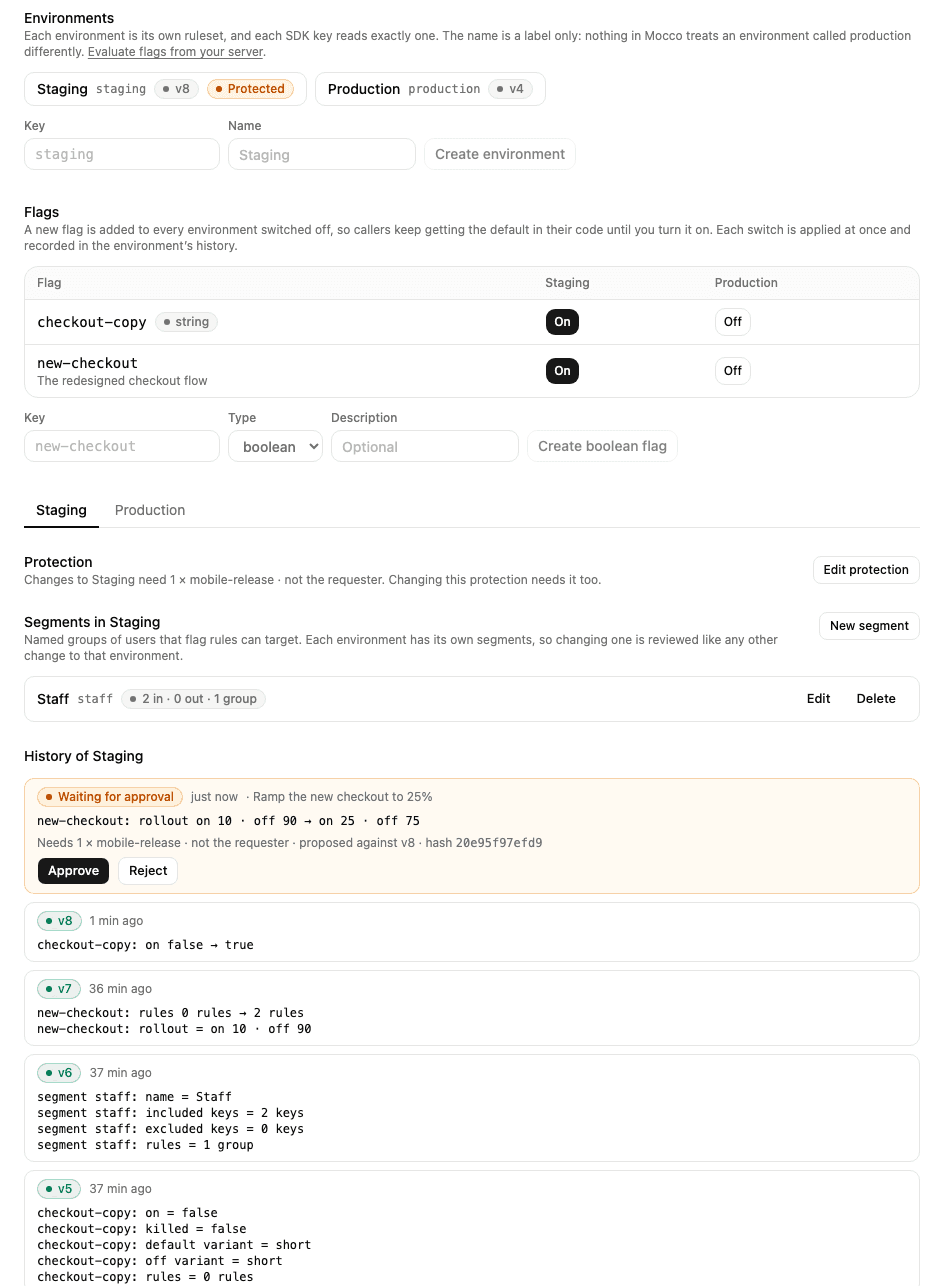
On the Feature flags page, pick an environment and choose Edit protection. Choose the role whose members approve changes, how many approvals are needed, and whether the person who proposed a change may approve it. A role is defined on the workspace's Access page.
Once an environment is protected, saving a change sends it for approval instead of applying it:
The change waits in the environment's history with its diff, the reason, and the protection it needs. People with the role get a notification if a workspace notification rule includes flag changes (the Mocco preset does).
An approver approves or rejects it right there. An approval is tied to the exact change on screen, so a change that was replaced in the meantime can't be approved by mistake.
When enough people approve, the change applies. If someone else changed the environment first, it is marked conflicted and nothing is applied; the person who proposed it can rebase it onto the current version, which sends it for approval again.
The proposer can withdraw a waiting change. A change nobody decides on within 7 days expires.
Changing or removing an environment's protection is itself approved under its current protection. A change that is already waiting keeps the protection it was proposed under.
5. Kill a flag in an emergency
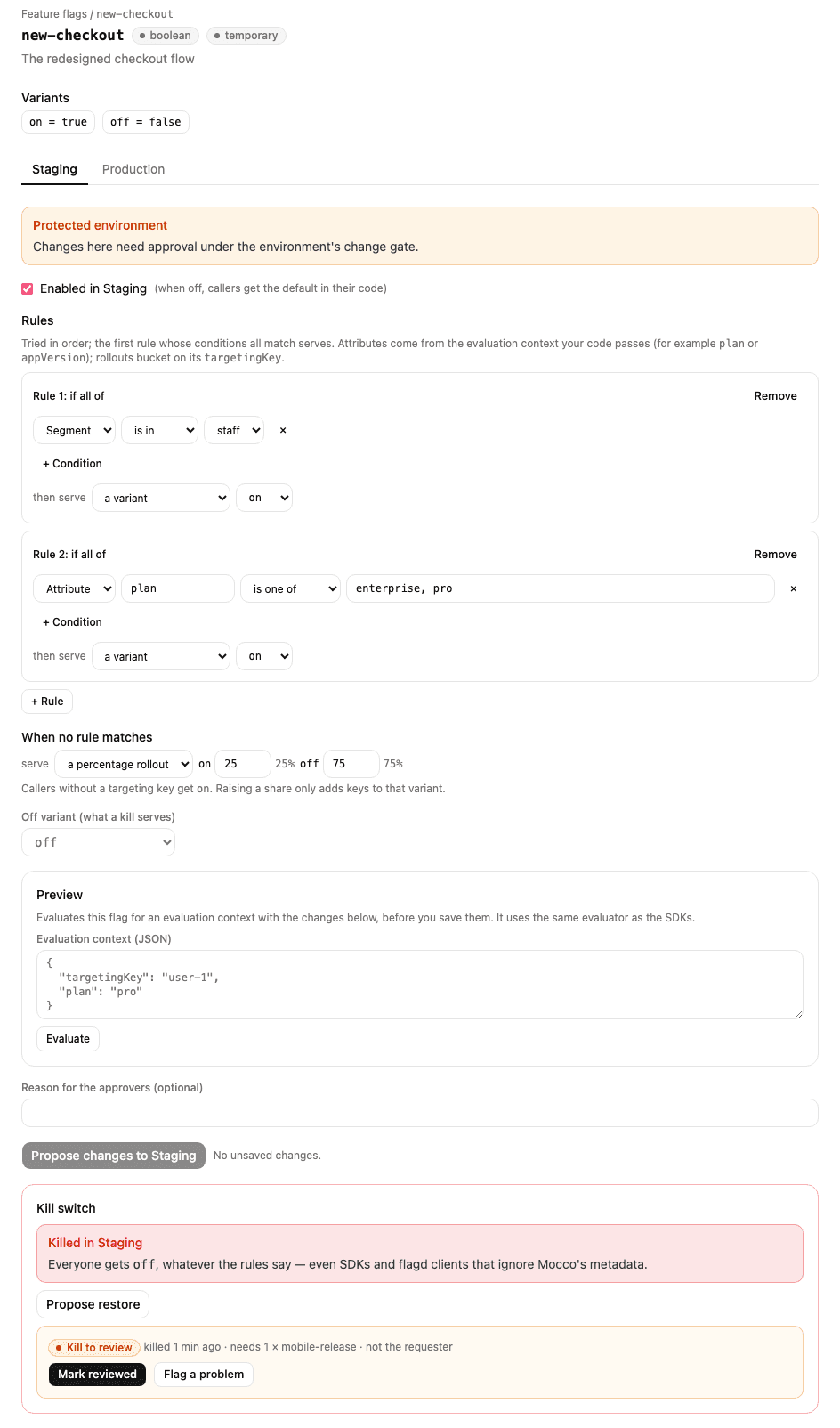
If a flag causes trouble, open it, enter a reason in Kill switch and choose Kill. Everyone in that environment gets the flag's off variant at once, whatever its rules say. That includes SDKs and flagd clients that don't know about Mocco: the served rules themselves say "off".
A kill never waits for approval, even in a protected environment, and is always recorded with who did it and why. In a protected environment, the kill is then up for review by the environment's approvers, who mark it reviewed or flag a problem. The off variant is set on the flag's page; changing it, and restoring a killed flag, are normal changes, so they need approval in a protected environment. On the Feature flags page, Edit protection also sets which roles may kill flags in that environment (by default, any workspace member).
6. Create a server key for one environment
On the project's API keys page, create a Secret key with the flags:read scope and choose the environment it reads. A key reads exactly one environment, so create one key per environment and give each server the key for its own environment. Copy the key from the notice; it is shown only once.
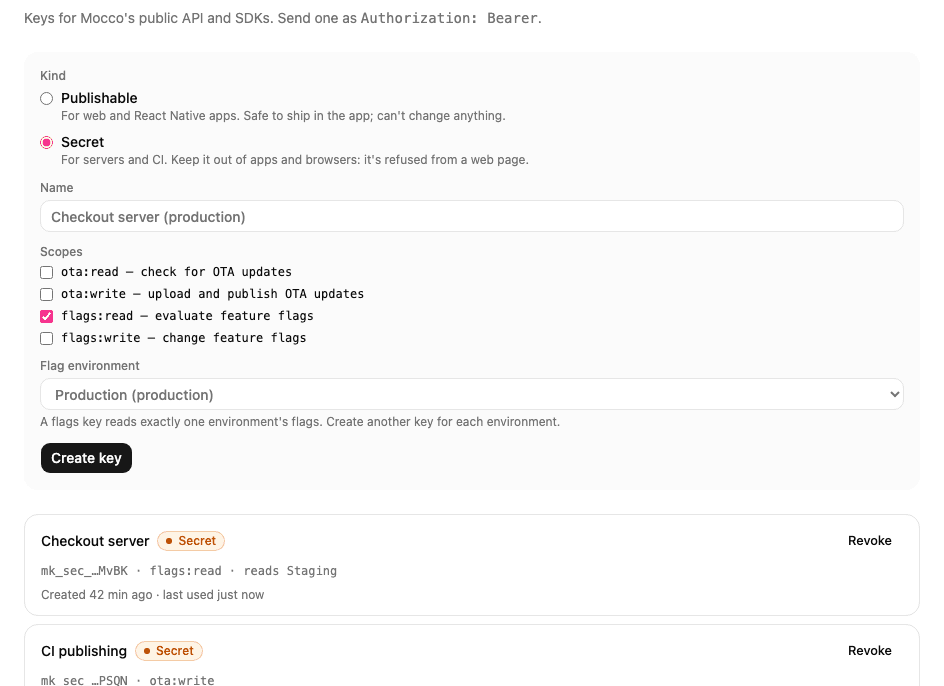
Keep this key on the server. Mocco refuses secret keys sent from a browser, because the rules can hold user lists and other details your users shouldn't see.
7. Evaluate flags from Node
Install OpenFeature's server SDK and the Mocco provider:
npm install @openfeature/server-sdk @mocco/openfeature-serverRegister the provider once when your server starts, then ask for flags anywhere:
import { MoccoProvider } from '@mocco/openfeature-server';
import { OpenFeature } from '@openfeature/server-sdk';

await OpenFeature.setProviderAndWait(new MoccoProvider({ secretKey: process.env.MOCCO_FLAGS_KEY! }));
const flags = OpenFeature.getClient();

if (await flags.getBooleanValue('new-checkout', false, { targetingKey: user.id, plan: user.plan })) {
  // the new checkout
}
The provider listens to Mocco's change stream, so when you switch a flag in the console, servers pick it up within a second or two, and OpenFeature emits PROVIDER_CONFIGURATION_CHANGED with the flags that changed. It also checks every 30 seconds in case the stream drops (pollIntervalMs changes that); when nothing changed, Mocco answers with an empty 304 Not Modified.
If Mocco can't be reached, the provider keeps answering from the last rules it received and reports PROVIDER_STALE until it reconnects. To start even when Mocco is unreachable at boot, pass a saved copy of the rules as bootstrap.
A flag that is switched off returns your code's default with the reason DISABLED. A flag key Mocco doesn't know returns your default with the error FLAG_NOT_FOUND, so a typo never breaks a request.
See deploys next to flag changes
Each environment's History lists its changes. To see your deploys among them, pick the repository whose pipeline deploys what the environment serves in Show the runs of, next to the History heading. Its pipeline runs then appear between the flag changes, so you can tell whether a flag was turned on before or after the code that reads it shipped. Select a run's commit to open the run. Linking a pipeline only adds the runs to the History: it changes no rule, switch or approval.
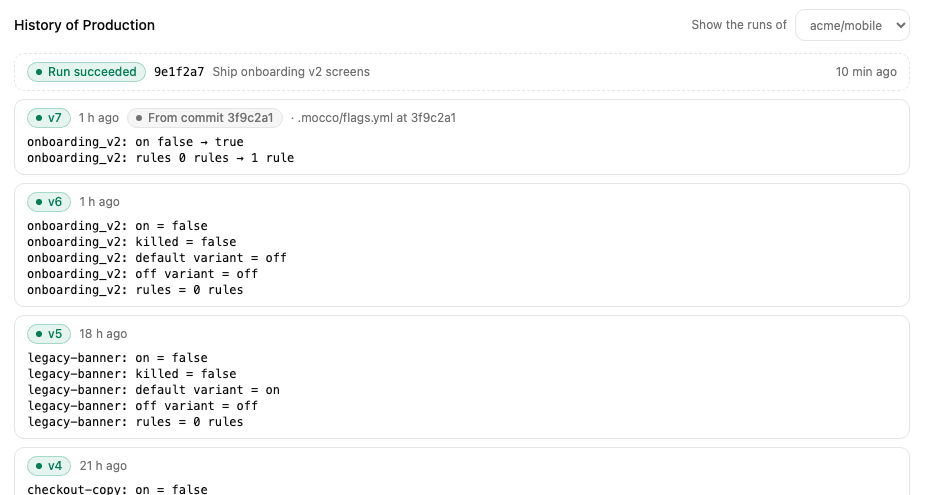
With a pipeline linked, Mocco also checks a flag before you turn it on. It looks at the code of the pipeline's last successful run, and if no file quotes the flag's key (as in getBooleanValue('checkout', …)), the editor warns you before you save. Turning the flag on then would serve a value no deployed code reads yet. The warning never stops you.

Use flagd instead
Mocco serves standard flagd flag definitions, so a flagd instance can sync from Mocco and serve flags to any OpenFeature flagd provider, in any language. Point flagd's HTTP sync at Mocco with the server key:
flagd start --sources='[{"uri":"https://api.mocco.club/v1/flags/ruleset","provider":"http","authHeader":"Bearer mk_sec_…","interval":30}]'flagd sends the last ETag with each poll, so unchanged rules cost one small request.
Browsers and apps
For web pages, React and React Native apps, see Feature flags in browsers and apps: devices get only the answers, never the rules.
Clean up stale flags
Mocco points out flags that look ready to come out of your code: never evaluated, not evaluated lately, or serving one value to everyone. See Clean up stale flags.
To keep flags in your repository and change them through pull requests, see Flags as code.