
Publish a help center
A help center is a public site with your product's help articles. You write them in Mocco in Markdown, see each one as readers will while you type, and publish when it's ready. Readers open the site in a browser, or from a link in your app.
1. Turn on the help center
A workspace member turns on Help center on the workspace's Products page. Each project then shows a Help center page.
2. Set up the site
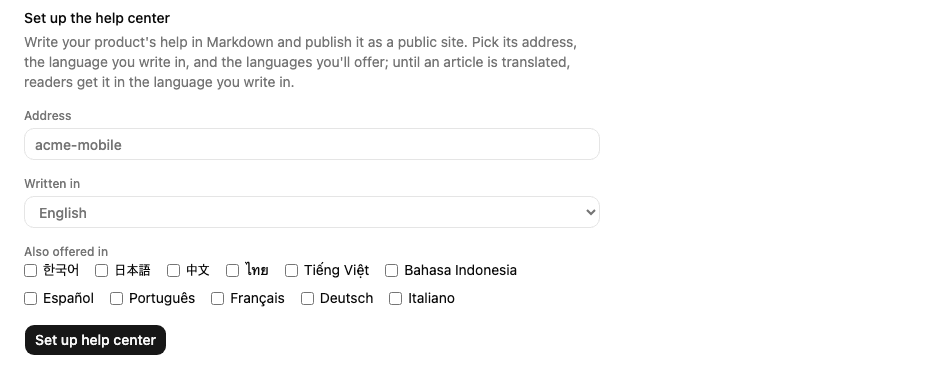
On the project's Help center page, pick:
Address: the site's name in its web address, such as
showyourtimeforshowyourtime.help.mocco.club. It must be unique across Mocco.Written in: the language you write articles in.
Also offered in: the languages you plan to offer. Until an article is translated, readers who pick another language get it in the language you write in.
Then choose Set up help center.
3. Organize and add articles
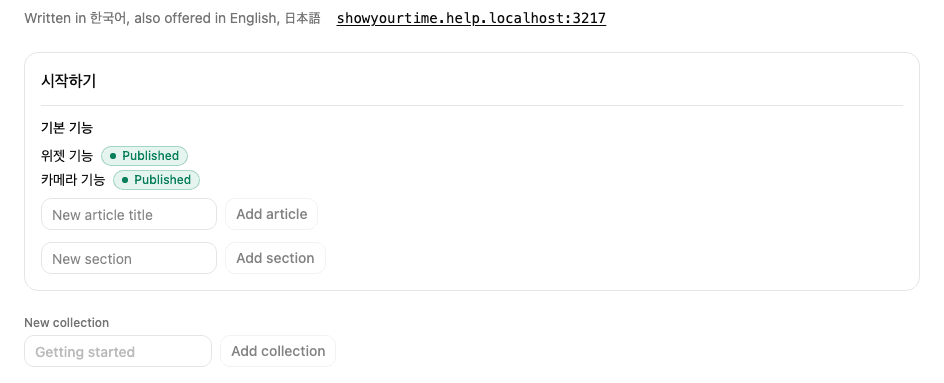
A help center has collections (the top level, such as "Getting started"), which hold sections (such as "Basics"), which hold articles. Add a collection at the bottom of the page, a section inside a collection, and an article inside a section. A new article opens in the editor.
The page shows every article with its state: Draft has never been published, Published is on the site, and Unpublished changes means the site still shows an earlier version than the one you saved. The site's address is at the top; select it to open the site.
Import from Mintlify
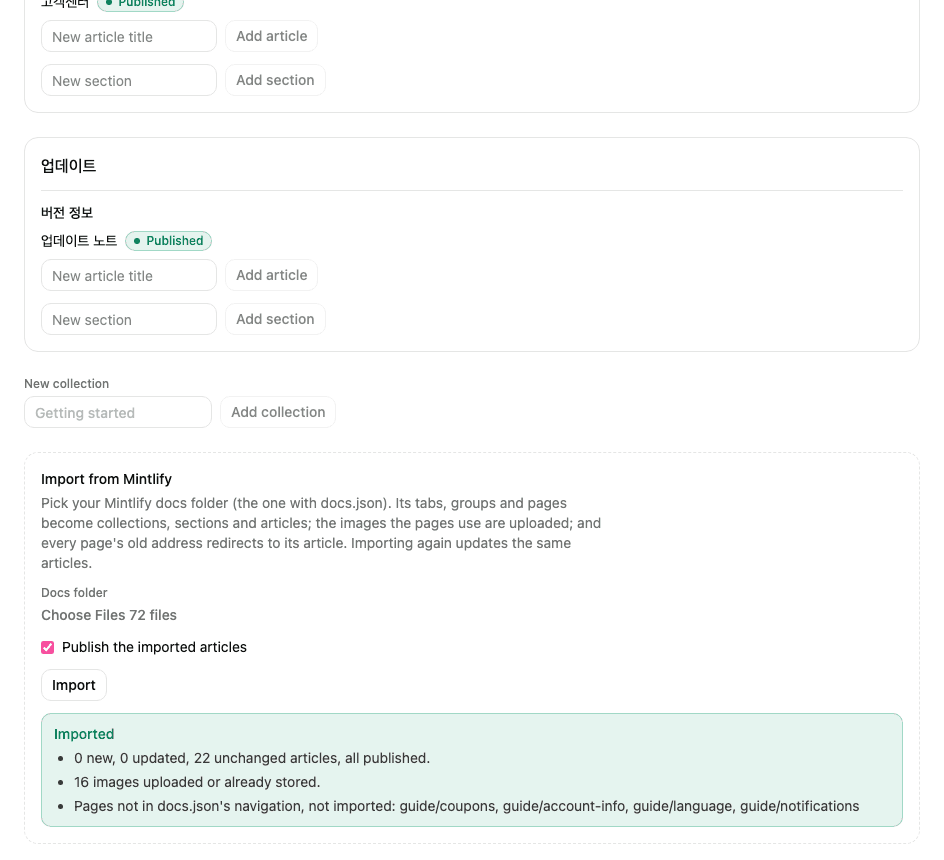
If your help site is on Mintlify, bring it over instead of writing it again. On the Help center page, under Import from Mintlify, pick your docs folder (the one with docs.json), leave Publish the imported articles on if they should go live at once, and choose Import.
docs.json's tabs, groups and pages become collections, sections and articles, in the same order.Mintlify's components become plain Markdown: steps become a numbered list, tips and notes become quoted notes, and update entries become headings.
The images your pages use are uploaded to Mocco.
Each page's old address (such as
/features/widget-features) redirects to its article, so links to the old site keep working once the address points at Mocco.Importing again updates the same articles and only changes the ones whose text changed.
When it's done, Mocco lists anything it couldn't bring over: images missing from the folder, and pages that aren't in docs.json's navigation.
4. Write and publish
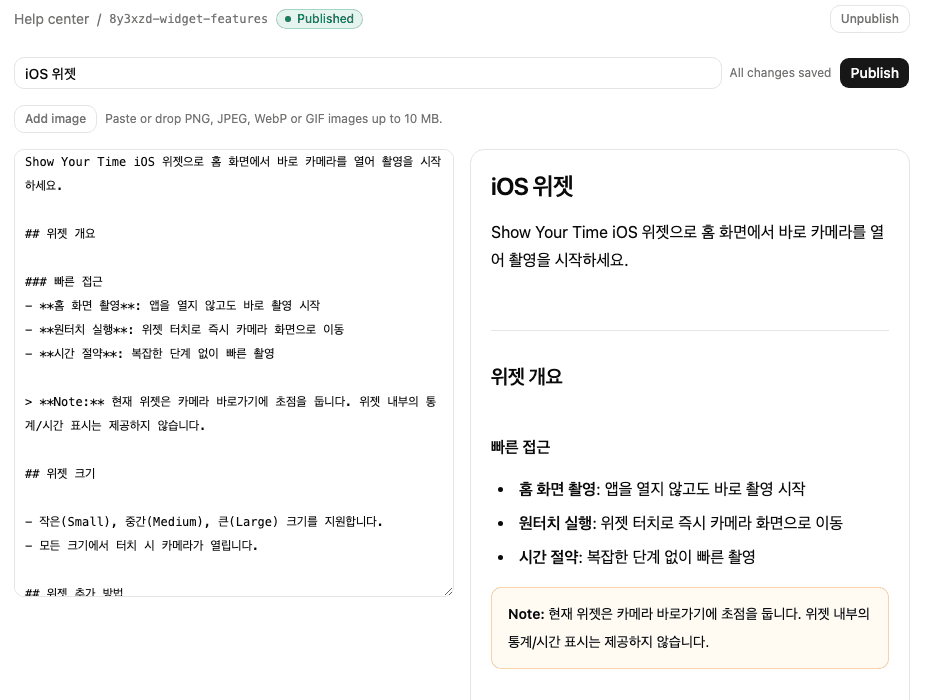
The editor has the article's title and its text in Markdown on the left, and the article as readers will see it on the right, updated as you type. You can use headings (##), numbered and bulleted lists, bold, links, notes (lines starting with >) and tables. Links can go to web pages (https://…), email addresses (mailto:…) or other pages of the site (/en/articles/…). Images must be https:// addresses, or images you add as below.
The draft saves itself a couple of seconds after you stop typing. Next to the title you see Saving…, then All changes saved. If a save fails, it says Couldn't save with Try again; your text stays in the editor. Saving never touches the site.
Publish saves anything unsaved and puts the draft on the site.
Unpublish takes the article off the site. Its text and history stay.
Delete article removes it and its history, after you confirm.
History below the editor keeps one entry per editing session: your saves over ten minutes land in the same entry, and publishing or restoring starts a new one. Restore makes an earlier version the draft again, as a new entry, so nothing in the history is lost. Publish it to put it back on the site.
Add images
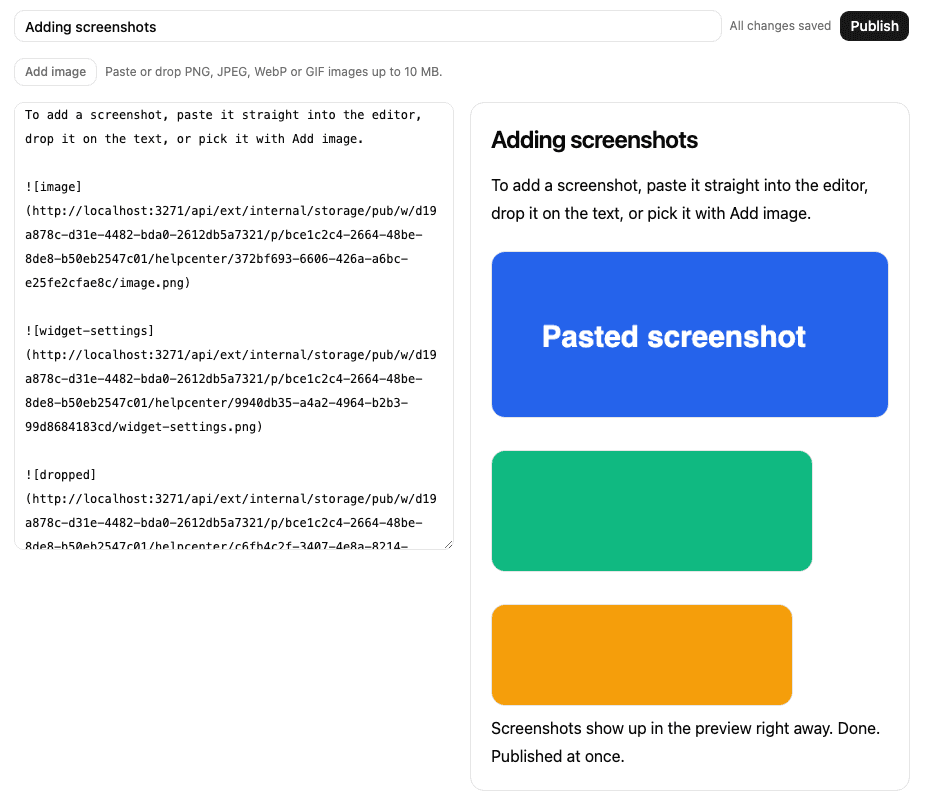
Paste a screenshot into the text, drop an image file on it, or pick files with Add image. Each image is uploaded and lands where the cursor is, as , and shows in the preview at once. PNG, JPEG, WebP and GIF images up to 10 MB can be added; anything else is refused with a message saying why. Images are public once uploaded, like the published site, so don't paste anything you wouldn't publish.
Translate
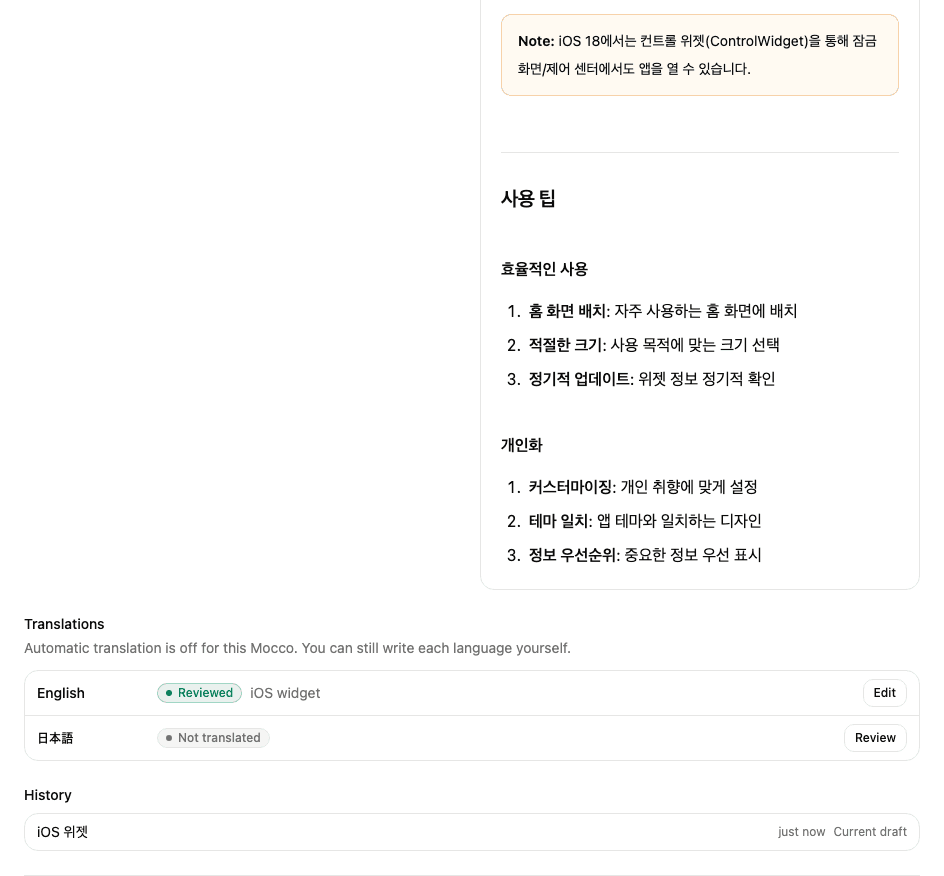
When you publish, Mocco translates the article into each language the site offers, if your Mocco has automatic translation turned on (otherwise you write each language yourself). The Translations section of the article shows every language and where it stands:
Machine translated: Mocco's translation, made from the published article.
Reviewed: a person wrote or fixed it. Mocco never replaces it on its own.
Source changed: the article was published again after this translation was made; review it to bring it up to date.
Machine draft ready: on a reviewed language whose source changed, Mocco has drafted a version for the new source. Your sentences are kept and only the changed ones are machine-translated. Readers keep seeing your reviewed text until you accept it.
Failed: the translation changed the article's structure (a heading, a code block or a link), so Mocco didn't use it. The reason is shown.
Not translated: nothing yet. Readers in that language get the article in the language you write in.
Review a translation
Choose Review (or Edit) on a language. The article you wrote is on the left and the translation on the right; switch the right side between Markdown and Preview. The top line says who last reviewed the language and when.
When the source changed since the translation was made, the review opens with what changed: each changed, added or removed paragraph, heading or table cell, with the old text struck through above the new. Unchanged parts are only counted, so you can see exactly what to look at.
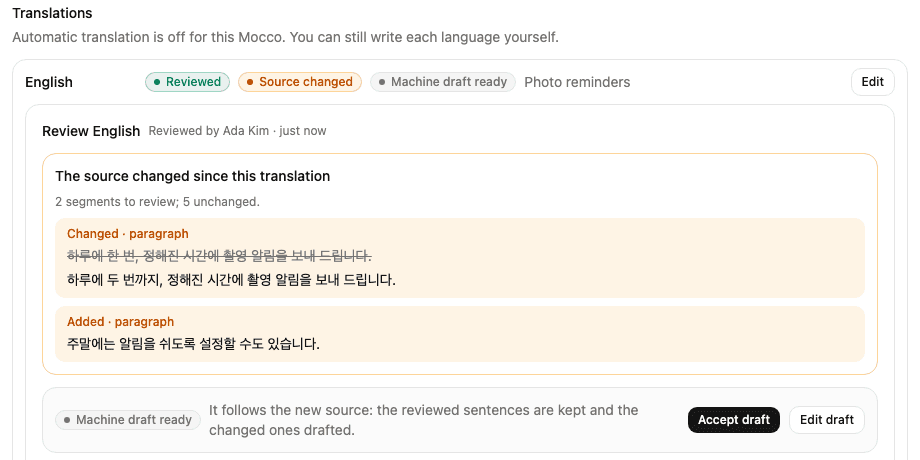
If a machine draft is ready, Accept draft makes it the reviewed text as it is. Edit draft puts it in the editor so you can fix it first.
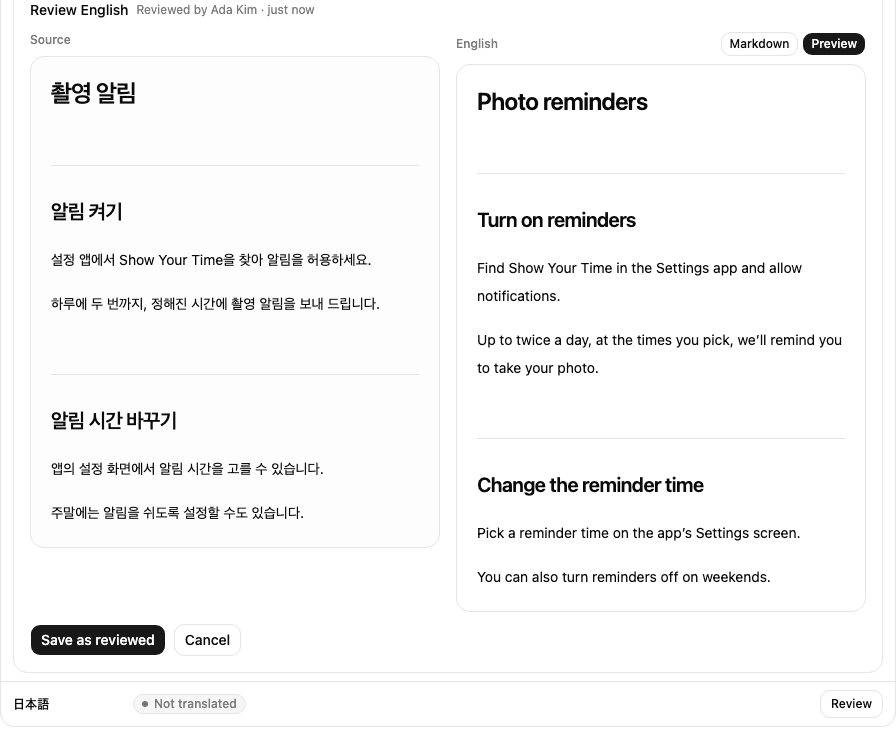
Save as reviewed keeps your text and marks the language reviewed. If the machine's translation is already right, the button reads Mark reviewed: saving it unchanged marks it reviewed. Mocco never replaces a reviewed text on its own, and every review is recorded in the workspace's audit log with who did it.
Translate again asks for a new machine translation. On a reviewed language it asks you to confirm first, because the machine's text replaces yours on the site. Your version stays in the article's history.
See every translation at once
Once the site offers another language, the Help center page links to Translations. At the top, each language shows how many published articles are reviewed, machine translated, out of date with the original (Source changed), failed, waiting for a translation, or not translated yet.
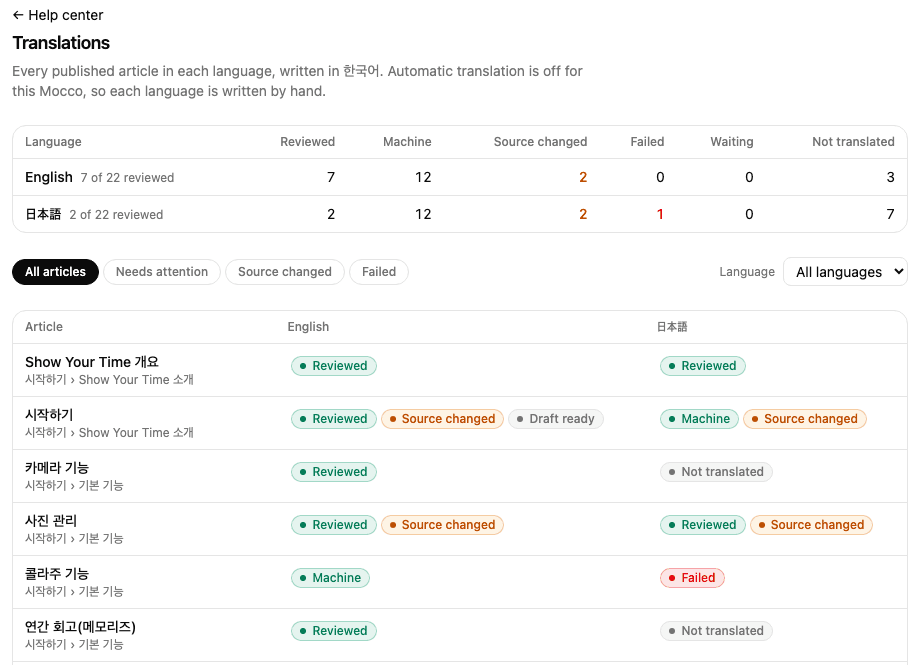
Below is every published article with its status in each language. Choose Needs attention to list only the articles with a language that is out of date, failed or not translated, or Source changed or Failed for just those. Pick a language to see only its column. Each status opens that language's review in the article, so you can go down the list and bring each one up to date.
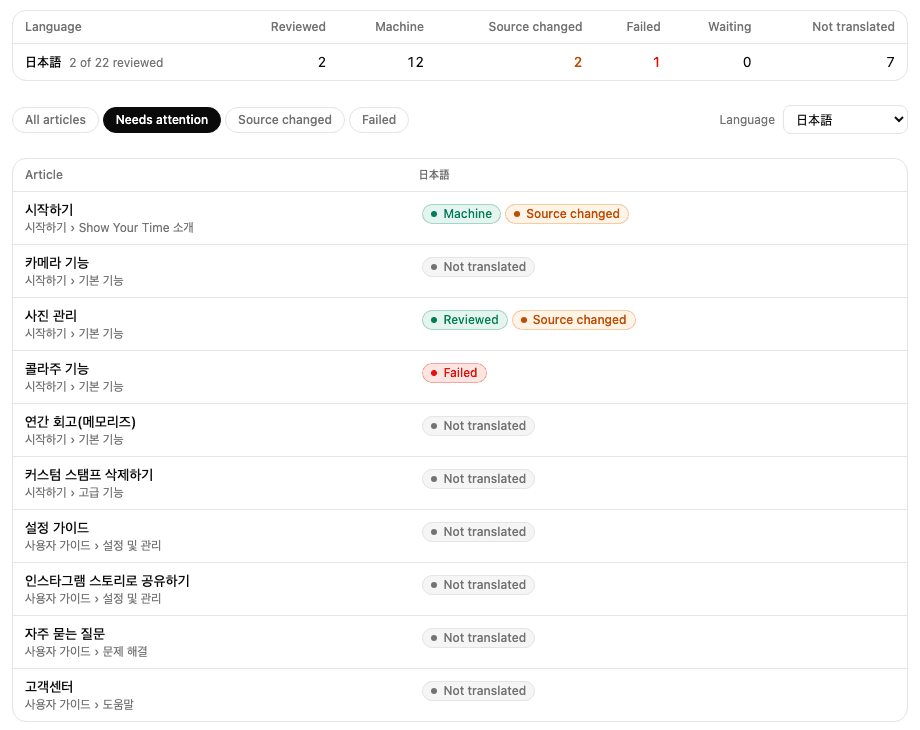
The page's address keeps the filter and language, so you can bookmark the view or send it to a teammate.
Readers who pick a language see its translation, and the article list shows translated titles, collections and sections included.
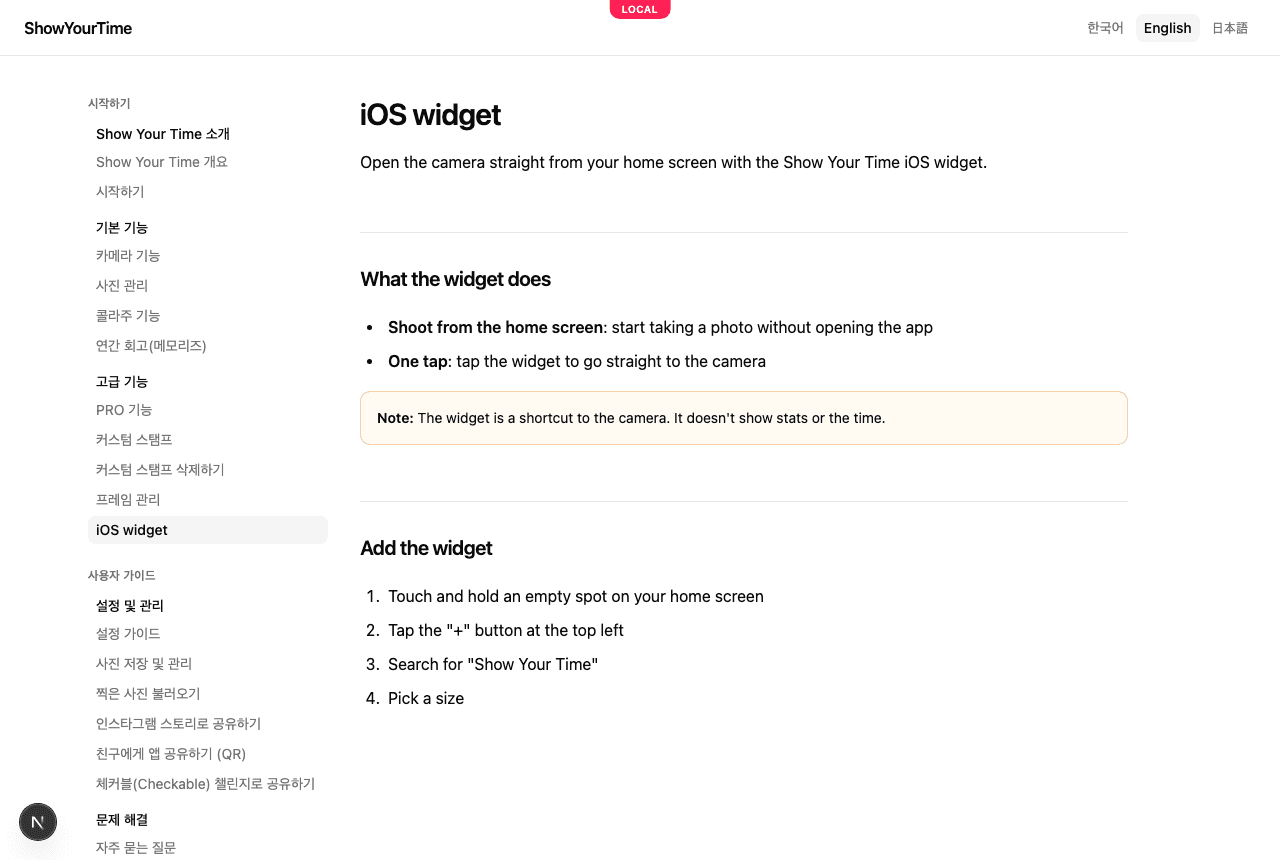
A machine translation nobody has reviewed says Automatically translated under its title, in the reader's language. Once you save a translation yourself, the label goes away.
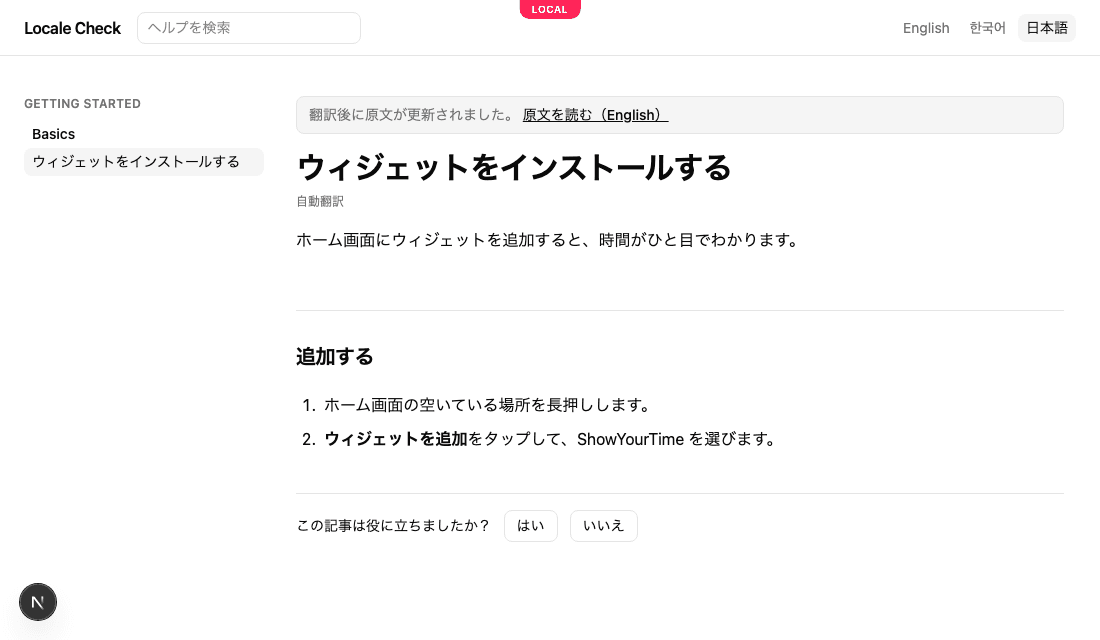
When you publish the article again, a translation made from the earlier version keeps being shown until it's updated, with a note at the top: the original changed since it was translated, and a link to the article in the language you write in. A machine translation loses the note as soon as Mocco translates the new version; a reviewed one keeps it until you review it again.
Keep names and words the same in every language
The Help center page also links to Glossary: the words every translation follows. Add a term and choose its rule:
Keep as written for your product's name, a feature's name or a button label. It stays exactly as you wrote it in every language; Mocco never sends it to be translated.
Fixed translation for a word that must always be translated the same way. Type its translation for each language you offer. A machine translation that doesn't use it is refused and asked for again; if it still doesn't, the language keeps its previous text and shows Failed.
A note says why, for whoever edits the term next.
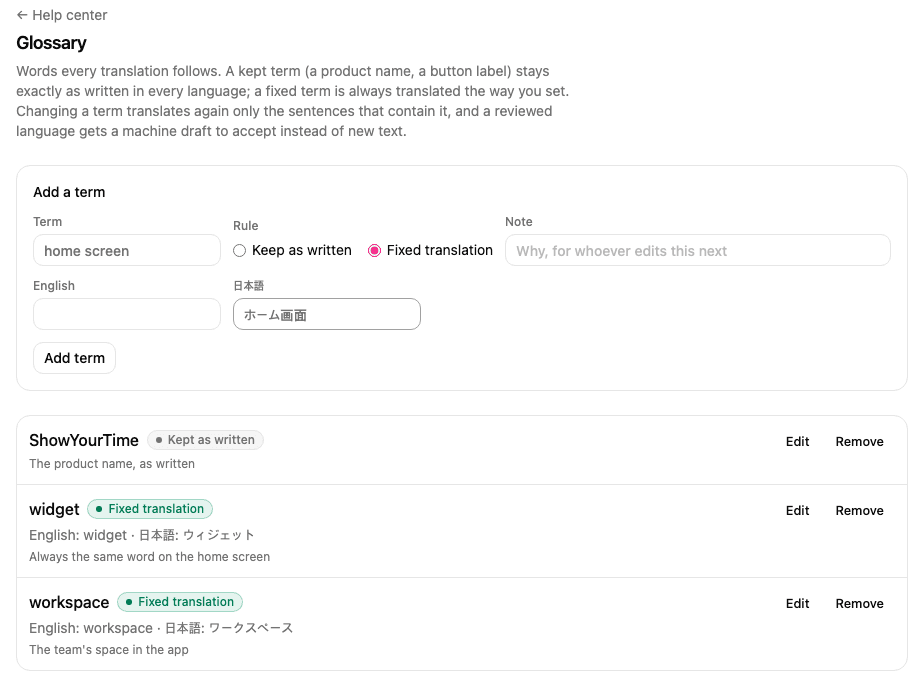
When you add, change or remove a term, Mocco translates again only the sentences that contain it, in the languages it changes; every other sentence stays as it is. A language someone reviewed keeps its text and gets a machine draft with the new term, to accept or edit in its review.
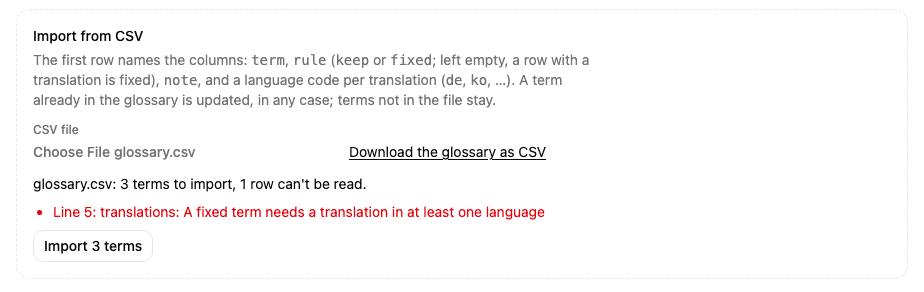
To add many terms at once, import a CSV file, for example a sheet exported from a spreadsheet. The first row names the columns: term, rule (keep or fixed; left empty, a row with a translation is fixed), note, and one column per language, named by its code (ja, ko, de, …). Mocco shows how many terms it read and the lines it couldn't, before you import. A term already in the glossary is updated, whatever its capitalization, and terms not in the file stay. Download the glossary as CSV gives you the current glossary in the same shape, to edit and import again.
Agents connected over MCP can read the glossary; changing it stays in the console.
Use your own domain
Your help center is at <address>.help.mocco.club from the start. To serve it on your own domain, such as help.example.com, ask the Mocco team to add the domain, then point it at Mocco with a DNS record (a CNAME to the target they give you). Once the record resolves, the site and every old address of an imported site answer on your domain. The Help center page then links your domain.
Search engines and AI
Your help center tells search engines where every article is, in every language it's offered in, at /sitemap.xml on its address (your own domain, once you have one). Search engines and AI search — Google, Bing, ChatGPT search, Claude, Perplexity — can always read it, so people asking them find your answers.
A link to an article shared in Slack, Discord, KakaoTalk or X shows a card with your help center's name, the article's collection, its title and its opening line; a changed article gets a new card.
AI assistants and coding agents can read it as Markdown too: /llms.txt on your help center's address lists every article (/<language>/llms.txt in another language), and adding .md to an article's address gives its text.
AI companies also send crawlers that collect text to train their models. They're allowed by default. To keep them out, clear Allow AI training crawlers at the bottom of the Help center page. Your site's /robots.txt then turns away GPTBot, ClaudeBot, Google-Extended, Applebot-Extended, CCBot, meta-externalagent and Bytespider, while search keeps working. Crawlers honor robots.txt on their next visit; it doesn't remove what they collected before.

5. What readers see
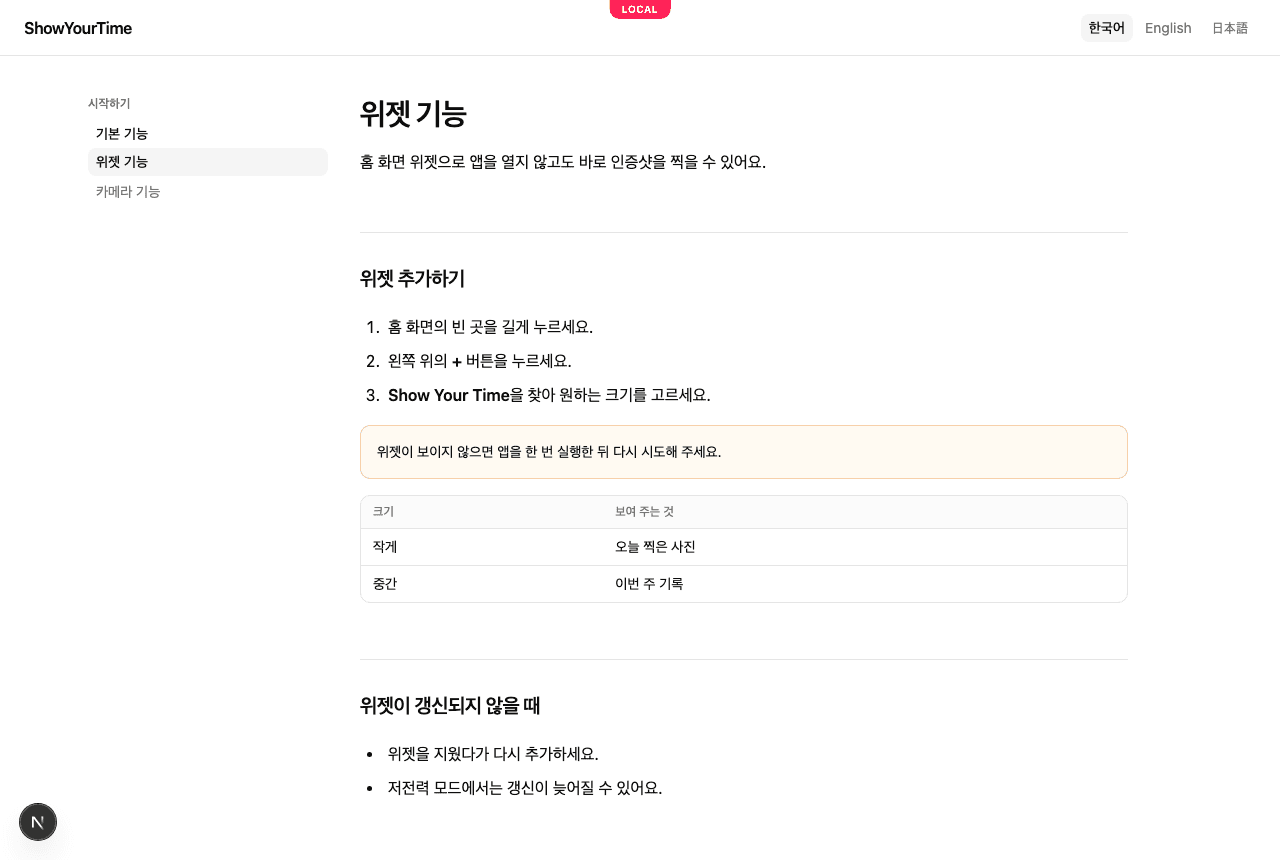
The site lists your collections and their articles in the language the reader picked, with a language switcher at the top. On an article, the switcher goes to the same article in each language it's translated into, and to that language's home otherwise. Each article has its own address, /<language>/articles/<id>-<name>. The <id> part never changes, so links keep working if you rename an article. A published change, an unpublished or deleted article, and a new translation appear on the article and the site's home right away; the article lists on other pages catch up within a minute.
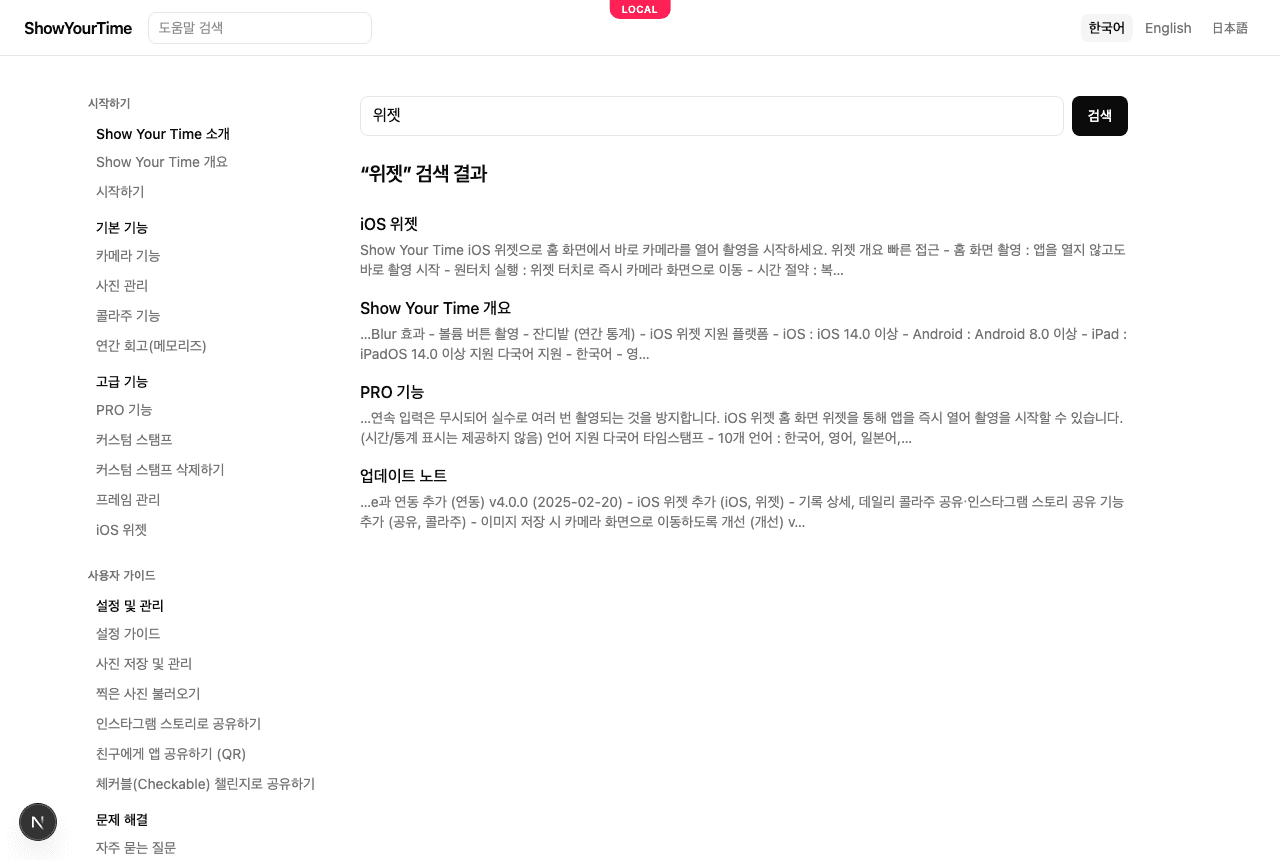
Readers can search from the box at the top of every page. Every word they type has to appear in an article's title or text, in the language they're reading (or yours, for articles not translated yet); articles whose title matches come first. The search box and results speak the reader's language.
Under every article, readers can answer Was this article helpful? with Yes or No, in their language. Changing their mind the same day replaces the first answer, so each reader counts once a day.
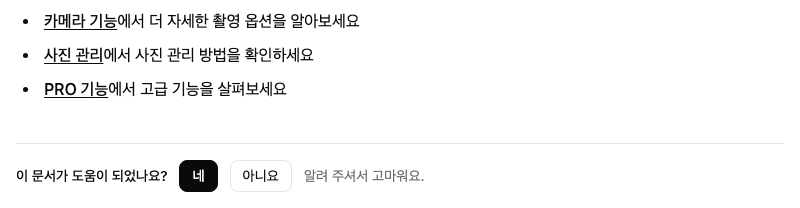
The article's page in Mocco shows what readers answered in the last 30 days: the share of Yes, the counts, and the newest comments sent from your app. Use it to find articles that need work.

Suggest articles in your app
Your app can search the help center too, for example to show related articles while someone writes to you, so they may find the answer before they send. Create a Publishable key with the help:read scope on the API keys page (an app that already uses Messenger can add the scope to its key). Then, in React Native:
import { createHelp, useHelpSearch } from '@mocco/react-native/messenger';

const help = createHelp({ publishableKey: 'mk_pub_…' });

function Suggestions({ text }: { text: string }) {
  // Waits until typing pauses; `any` finds articles that share any word with the text.
  const { hits } = useHelpSearch(help, text, { locale: 'en', limit: 3, match: 'any' });
  return hits.map(hit => <ArticleLink key={hit.path} title={hit.title} url={hit.url} />);
}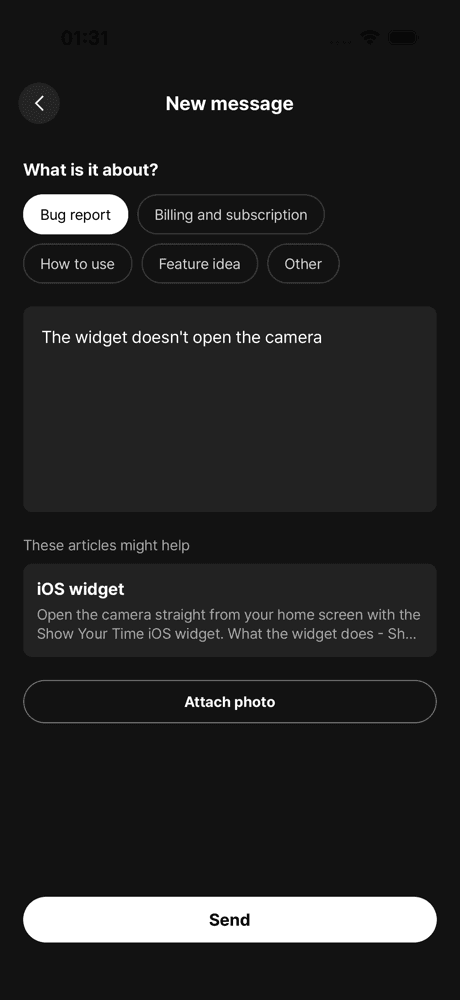
Each hit has the article's title, a snippet of its text and its url on your help site, in the reader's language where it is translated. Any other client can call GET https://api.mocco.club/v1/help/search?q=…&locale=en&match=any with the key as Authorization: Bearer mk_pub_….
Show articles in your app
The same key can open the help center inside your app instead of sending people to the browser. getSite lists your collections, sections and article titles, and getArticle gives one article's Markdown, to render with any Markdown component:
import { createHelp } from '@mocco/js'; // or '@mocco/react-native/messenger'

const help = createHelp({ publishableKey: 'mk_pub_…' });

const site = await help.getSite({ locale: navigator.language });
const article = await help.getArticle(site.collections[0].sections[0].articles[0].id, { locale: 'en' });
Pass the device's language as it comes (en-GB counts as English). An article that isn't translated into it yet arrives in your own language, and article.locale says which language you got. Only published articles are there: a draft, or an article you unpublish, answers null. On the web, add your site's address to the Web origins of the project's web app (Workspaces and projects) so the browser may call Mocco with the key.
Ask "Was this helpful?" in the app too, with an optional comment that only your team sees. Give createHelp an id your app keeps for the install, so a reader counts once a day; Mocco stores only a scrambled form of it.
const help = createHelp({ publishableKey: 'mk_pub_…', visitorId: installId });

await help.sendFeedback(article.id, { helpful: false, locale: article.locale, comment: 'Missing Android steps' });