
Collect ideas in your app
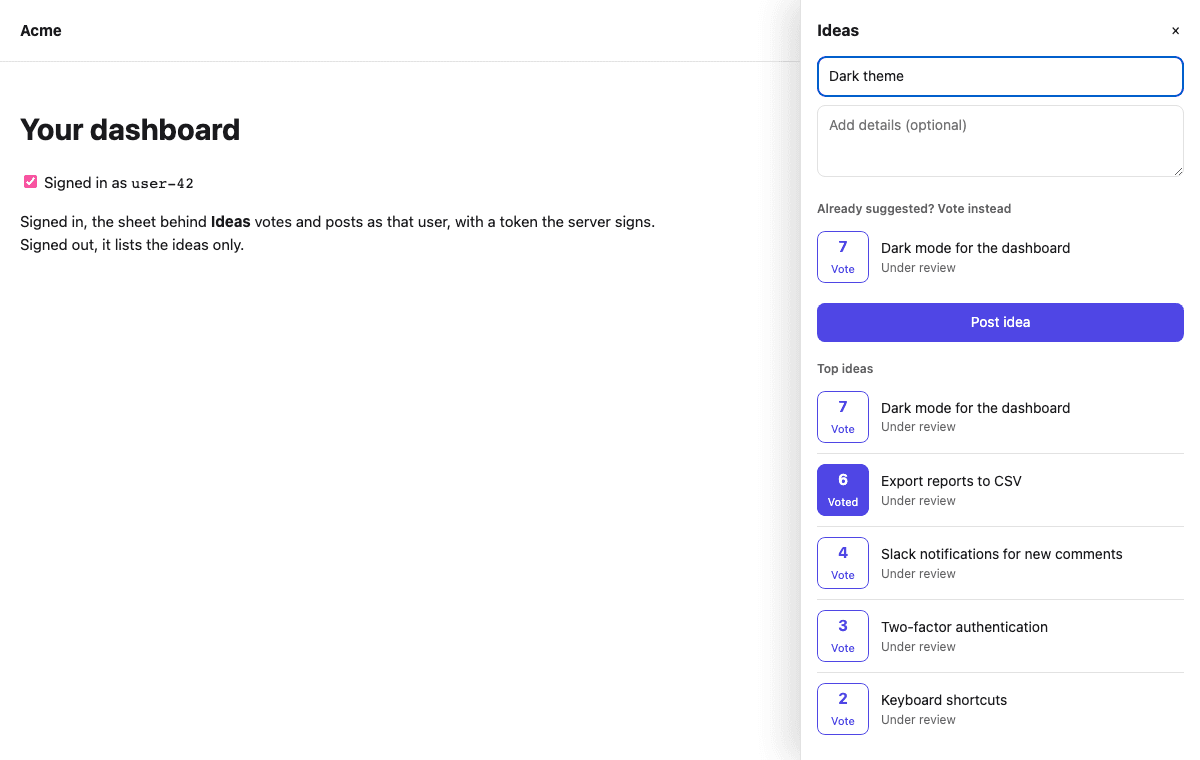
Your users have ideas while they use your app, not while they browse your website. The feedback sheet brings a board into the app: it lists the most voted ideas, lets a signed-in user vote, and takes a new idea. While they type a title, ideas like it appear first, so a user who finds theirs votes for it instead of posting it again.
1. Before you start
A public feedback board (see Open a public feedback board). The app reads it by its slug, such as
ideas.A publishable key for the project (Settings → API keys) with
feedback:readandfeedback:write. A publishable key is safe to ship in an app.Signed-in users, told apart by a token your server signs: an HS256 JWT signed with the project's identity secret, the user's id as
sub, expiring within an hour. It is the same token the public board and the "what's new" badge use. Without it, the sheet lists the ideas and says that users must sign in to vote or post.For a web app, its address registered as a web origin of a web app in the project (Settings → Apps).
2. On the web
Install the browser SDK and mount the sheet on a button of your page. Clicking the button opens the sheet at the side of the page; Escape or the close button closes it.
npm install @mocco/jsimport { createFeedbackSheet } from '@mocco/js/feedback-sheet';
const ideas = createFeedbackSheet({
publishableKey: 'mk_pub_…',
board: 'ideas',
// Return null while nobody is signed in: the sheet is then read-only.
endUserToken: async () => {
const response = await fetch('/api/mocco-token');
return response.ok ? ((await response.json()) as { token: string }).token : null;
},
});
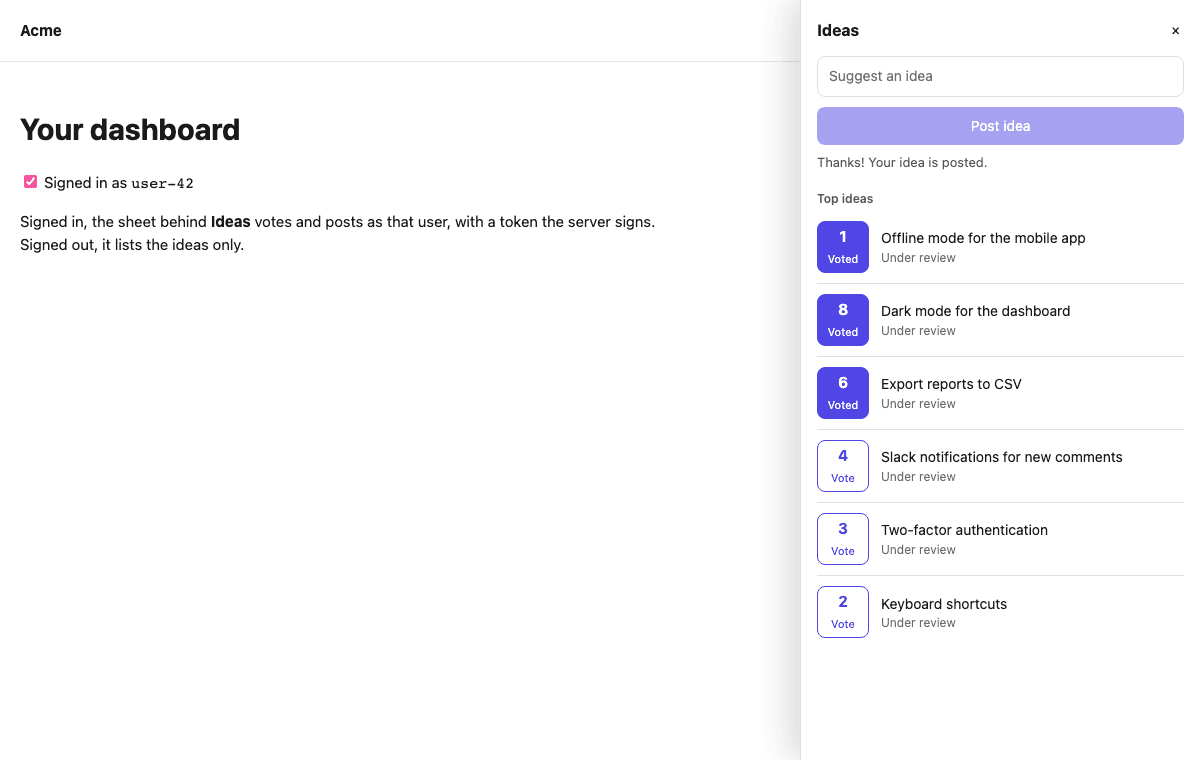
ideas.mount('#ideas-button');Signed in, the user votes with the button next to each idea (pressing it again takes the vote back) and posts an idea with the box at the top. A new idea starts under review with the author's vote and goes to the top of the list.
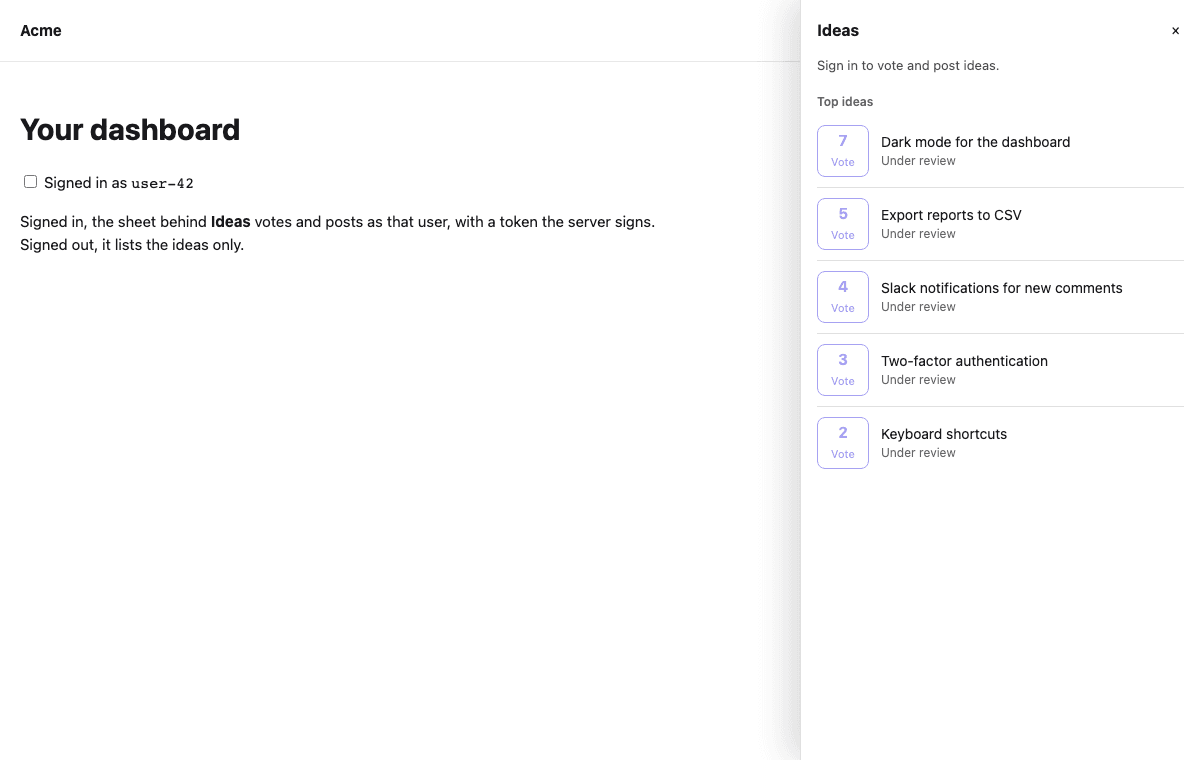
A visitor without a token sees the same list, read-only:
Options for mount:
| Option | What it does |
|---|---|
labels | The sheet's words, such as title (the board's name by default), submit, similar, signIn, statuses (one per post status) and votes (a function that says a count for screen readers) |
categoryId | Post new ideas in one of the board's categories |
onOpenChange | Called with true or false when the sheet opens or closes, for example for analytics |
mount returns a function that removes the sheet again. To change the colors, set --mocco-fs-accent (the vote and post buttons), --mocco-fs-bg, --mocco-fs-fg and --mocco-fs-border on your page; the sheet follows the system's dark mode by default. Every text, including what users write, is shown as text, so nothing in a post runs as code on your page.
The sheet, with the client it needs, is about 6 KB gzipped in a bundled app; Mocco's checks keep it under 25 KB.
3. In React Native
Install the React Native SDK (it runs in Expo Go):
npx expo install @mocco/react-nativeCreate one sheet for the app, outside your components, and open <FeedbackSheet /> from any button. It is a modal page sheet; it loads the board each time it opens.
import { useState } from 'react';
import { Button } from 'react-native';
import { createFeedbackSheet, FeedbackSheet } from '@mocco/react-native/feedback';

export const ideas = createFeedbackSheet({
  publishableKey: 'mk_pub_…',
  board: 'ideas',
  endUserToken: async () => await fetchMoccoTokenFromYourServer(),
});

export function IdeasButton() {
  const [isOpen, setIsOpen] = useState(false);
  return (
    <>
      <Button title="Ideas" onPress={() => setIsOpen(true)} />
      <FeedbackSheet sheet={ideas} visible={isOpen} onClose={() => setIsOpen(false)} accentColor="#4f46e5" />
    </>
  );
}
FeedbackSheet takes labels (the same words as on the web), accentColor and categoryId. To draw the screen in your own design instead, useFeedbackSheet(ideas) gives the same state and actions: posts, votes, isSignedIn, draft (with similar), toggleVote(postId), setDraft({ title, body }) and submit(). It sits well next to the messenger on a "Help & feedback" screen, since both use the same signed-in user.
4. Draw your own, or go further
The sheet is built on FeedbackClient, which you can use directly (@mocco/js/feedback on the web, FeedbackClient from @mocco/react-native/feedback):
import { createFeedback } from '@mocco/js/feedback';

const feedback = createFeedback({ publishableKey: 'mk_pub_…', endUserToken: fetchMoccoToken });
const board = feedback.board('ideas');

const similar = await board.similar('Dark theme'); // up to 5 posts like the title
const post = await board.createPost({ title: 'Dark theme', body: 'For late nights.' });
await feedback.comment(post.id, 'Also for the mobile app, please.');
const { comments } = await feedback.comments(post.id); // isMine marks the user's own
await feedback.unfollow(post.id); // voting or posting follows a post; this opts out
const roadmap = await board.roadmap(); // { planned, in_progress, shipped }
Every write needs a signed-in user: without a token it is refused with a MoccoError whose code is missing_end_user_token, before anything is sent.
5. Example apps
Web.
examples/web-feedbackin the Mocco repository is a static page with a "What's new" badge and an "Ideas" sheet, and a small Node server (no dependencies) that signs the end-user token, as your server would. Its README says how to run it against your project.Expo. The code in section 3 is the whole integration: put
IdeasButtonon any screen of an Expo app (npx create-expo-app, thennpx expo install @mocco/react-native), and havefetchMoccoTokenFromYourServercall your server's token endpoint.
6. Limits
A signed-in user can post 5 ideas, vote 30 times and comment 20 times an hour; the similar-ideas search runs at most 60 times a minute from one address, which typing in the sheet stays under, since it waits until typing pauses. The list shows the 20 most voted ideas.
For a signed-in user, the sheet shows Voted on every idea they voted for before, in this sheet or anywhere else in your app, as soon as it opens. Pressing it takes the vote back. A visitor who isn't signed in sees no votes as theirs.