
In-app contact with Mocco Messenger
Messenger lets the people signed in to your app write to your team without leaving the app, and lets your team answer from one inbox in Mocco. Each request is a conversation: the user picks a category, writes, and can keep replying in the same thread. Your app version, build and platform come along, so you know what they were running.
1. Turn on Messenger
A workspace member turns on Messenger on the workspace's Products page. Each project then shows an Inbox page.
2. Set up the messenger
On the project's Inbox page, choose Set up messenger. Mocco creates the project's identity secret and shows it once: copy it and store it as a secret on your server (for example MOCCO_MESSENGER_SECRET).
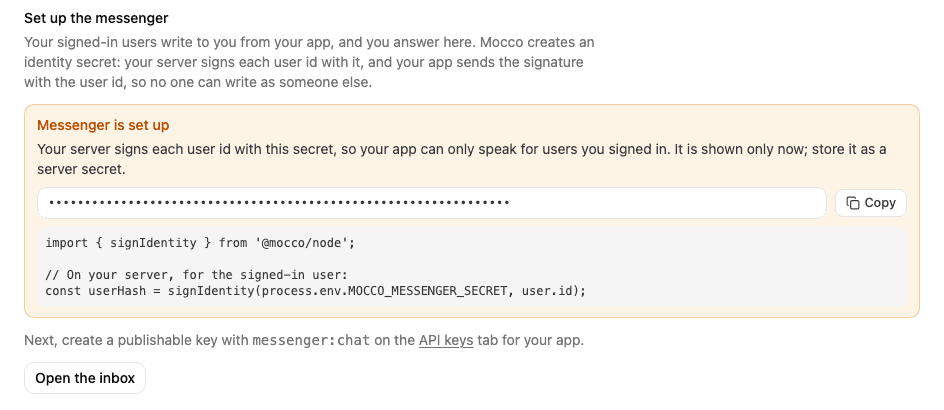
The secret is how Mocco knows a request really comes from your user. Your server signs each signed-in user's id with it, and your app sends that signature along with the id. Someone who only has your app can't write as another user, because they can't make the signature.
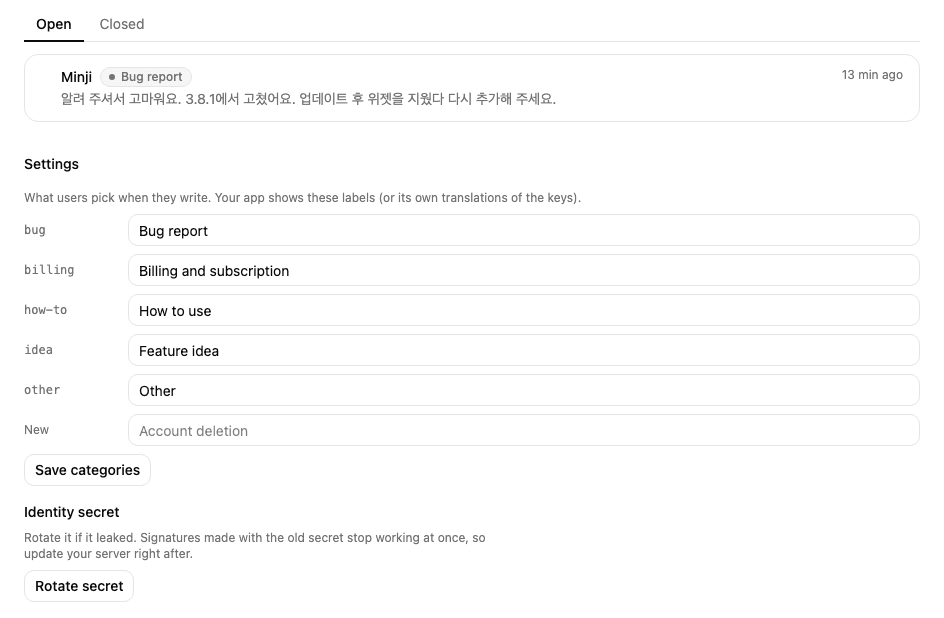
If the secret leaks, choose Rotate secret in the inbox settings. Signatures made with the old secret stop working at once, so put the new one on your server right away.
3. Create a key for your app
On the API keys page, create a Publishable key with the messenger:chat scope. It is safe to ship in the app: on its own it can't open anything without a signature from your server.
4. Sign the user id on your server
Give your app the signature for its signed-in user, for example from an endpoint your app already calls after sign-in:
import { signIdentity } from '@mocco/node';

// For the signed-in user only.
const userHash = signIdentity(process.env.MOCCO_MESSENGER_SECRET!, user.id);
signIdentity is HMAC-SHA256 of the user id, as hex. Any language can compute the same value.
5. Contact your team from the app
React Native
Install the SDK (it is plain JavaScript, so it runs in Expo Go too):
npm install @mocco/react-native @react-native-async-storage/async-storageCreate one messenger for the app and wrap the app in its provider. identity asks your server for the signed-in user's signature, or returns null while nobody is signed in:
import AsyncStorage from '@react-native-async-storage/async-storage';
import { createMessenger, MessengerProvider } from '@mocco/react-native/messenger';
import * as Application from 'expo-application';
import { Platform } from 'react-native';

const messenger = createMessenger({
  publishableKey: 'mk_pub_…',
  identity: async () => {
    const user = await getSignedInUser();
    if (user === null) return null;
    const { userHash } = await api.messengerIdentity(); // your endpoint, signs user.id
    return { userId: user.id, userHash, name: user.name, email: user.email };
  },
  context: () => ({
    appVersion: Application.nativeApplicationVersion ?? undefined,
    build: Application.nativeBuildVersion ?? undefined,
    platform: Platform.OS === 'ios' ? 'ios' : 'android',
  }),
  storage: AsyncStorage,
});

export default function App() {
  return (
    <MessengerProvider client={messenger}>
      <Navigation />
    </MessengerProvider>
  );
}
Then draw the screens in your own design with the hooks:
import { useConversation, useConversations, useMessengerCategories, useUnreadCount } from '@mocco/react-native/messenger';

function SettingsRow() {
  const unread = useUnreadCount(); // a badge on "Contact us"
  // …
}

function ContactList() {
  const { conversations, start } = useConversations(); // refreshed while the screen is open
  const categories = useMessengerCategories();
  // start({ category: 'bug', body }) to open a new one
}

function Thread({ id }: { id: string }) {
  const { messages, send, isSending } = useConversation(id); // new messages are marked read
  // messages: { seq, author: 'contact' | 'operator', authorName, body, createdAt }
}
When a user deletes their account in your app, call useMessenger().deleteMyData(): it erases their conversations, messages and screenshots in Mocco and forgets them on the device. When someone signs in to your app, call useMessenger().reidentify() so the messenger opens their session. When the user signs out of your app, call useMessenger().signOut() so the next user starts fresh.
To attach a screenshot (PNG, JPEG, WebP or GIF) or a PDF, up to 10 MB each and up to 3 per message, upload it first and send its id:
const messenger = useMessenger();
const picked = await ImagePicker.launchImageLibraryAsync({ mediaTypes: ['images'] });
const asset = picked.assets?.[0];
if (asset !== undefined) {
  // Send bytes: with a Blob, React Native replaces the upload's Content-Type and it is refused.
  const body = new Uint8Array(await (await fetch(asset.uri)).arrayBuffer());
  const attachmentId = await messenger.attach({
    body,
    contentType: 'image/jpeg', // the picked image's real type
    sizeBytes: body.byteLength,
  });
  await send('Here is what I see', [attachmentId]); // from useConversation(id)
}
A PDF works the same way with contentType: 'application/pdf' (from a document picker, for example). Declare the file's real type: Mocco reads the start of the file, and a message whose file isn't what it claims to be is refused and the file deleted.
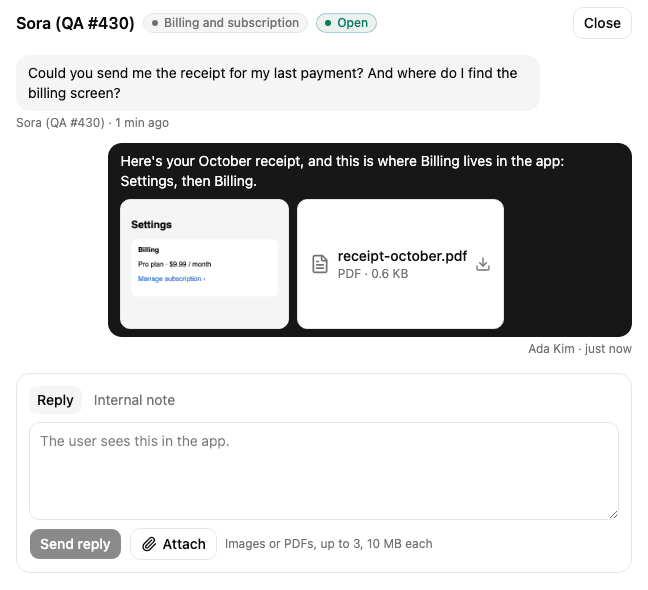
Messages come back with attachments, each with a filename, a sizeBytes and a url that works for a few minutes. Show an image with <Image source={{ uri: attachment.url }} />. A PDF's url is a download, so offer it as a file (its name and size) and open it with Linking.openURL(attachment.url) or save it, rather than showing it inline.
To get a notification when your team replies while the app is closed, register the device's Expo push token after sign-in, and open the conversation when the user taps the notification:
import * as Notifications from 'expo-notifications';
import { messengerConversationIdOf, useMessenger } from '@mocco/react-native/messenger';

const messenger = useMessenger();
const { data: token } = await Notifications.getExpoPushTokenAsync();
await messenger.registerPushToken({ provider: 'expo', token, platform: Platform.OS === 'ios' ? 'ios' : 'android' });

Notifications.addNotificationResponseReceivedListener(response => {
  const conversationId = messengerConversationIdOf(response.notification.request.content.data);
  if (conversationId !== undefined) navigation.navigate('ContactThread', { id: conversationId });
});
The notification's title is your project's name and its text is the start of the reply; a reply the user has already read in the app isn't pushed. signOut() removes the device, so the next person to sign in on it doesn't get the previous user's replies.
Any other client
The SDK calls a small HTTP API you can use from anywhere. The base URL is https://api.mocco.club/v1/messenger.
POST /sessions
Authorization: Bearer mk_pub_…
Content-Type: application/json

{
  "userId": "user-42",
  "userHash": "4b8d8248…",
  "name": "Minji",
  "email": "minji@example.com",
  "traits": { "plan": "premium" },
  "context": { "appVersion": "3.8.0", "build": "412", "platform": "ios", "locale": "ko-KR" }
}
The answer has a sessionToken (mms_…, valid 30 days) and the project's categories. Send the token as Authorization: Bearer mms_… on the other calls:
| Call | What it does |
|---|---|
GET /conversations | The user's conversations, newest first. hasUnread is true when your team has replied since they last read |
POST /conversations | Start one: { "category": "bug", "body": "…", "clientMessageId": "<uuid>", "context": {…} } |
GET /conversations/{id}/messages?afterSeq=0 | The messages, oldest first. Each has a seq; pass the last one you have as afterSeq to get only new ones |
POST /conversations/{id}/messages | Reply: { "body": "…", "clientMessageId": "<uuid>" } |
POST /conversations/{id}/read | { "seq": 5 } once the user has seen up to that message |
POST /push-tokens | { "provider": "expo", "token": "ExponentPushToken[…]", "platform": "ios" } so replies are pushed to the device; DELETE /push-tokens { "token": … } on sign out |
DELETE /me | Erase the user and everything they wrote, for your app's "delete my account" |
POST /attachments | { "contentType": "image/png", "sizeBytes": 48213 } (or application/pdf) → an attachmentId and an upload URL to PUT the bytes to; then list the id in attachmentIds when you start or reply |
Generate a new clientMessageId for each message and reuse it if you retry: Mocco stores the message once, however many times the request arrives. A user can send 20 messages a minute and start 5 conversations an hour.
People who aren't signed in
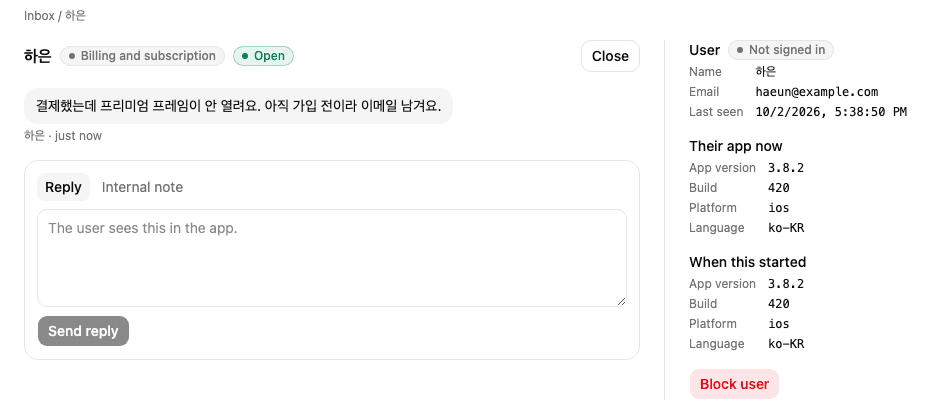
To let anyone contact you, including people who haven't signed in, turn on Let people who aren't signed in write in the inbox settings. They leave an email so you can reach them. In the app, when the messenger's state is signed_out, ask for an email and call continueAsGuest:
const { status } = useMessengerState();
const messenger = useMessenger();

if (status === 'signed_out') {
  // show an email field, then:
  await messenger.continueAsGuest({ email, name });
}
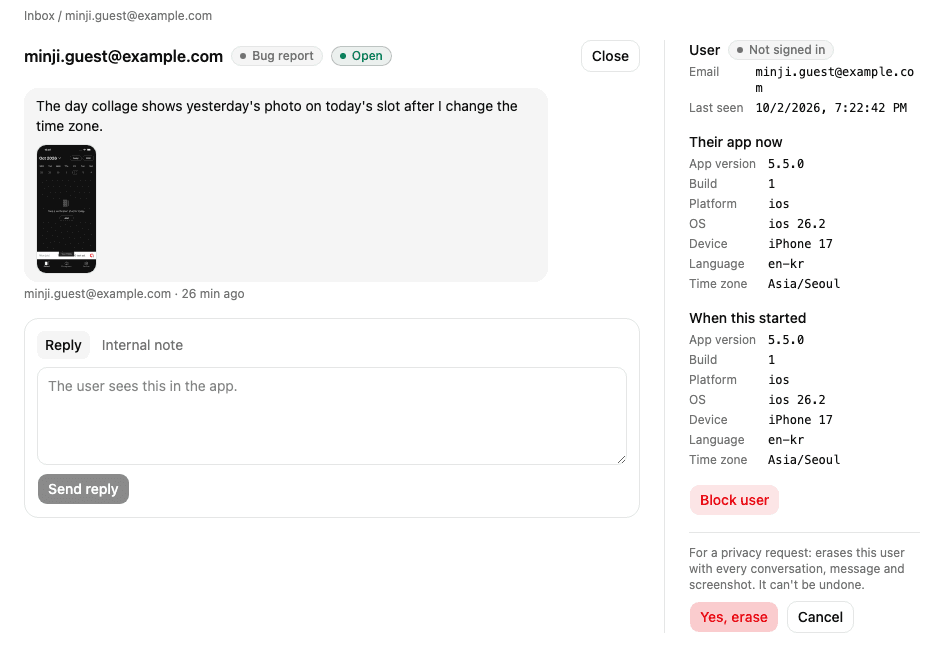
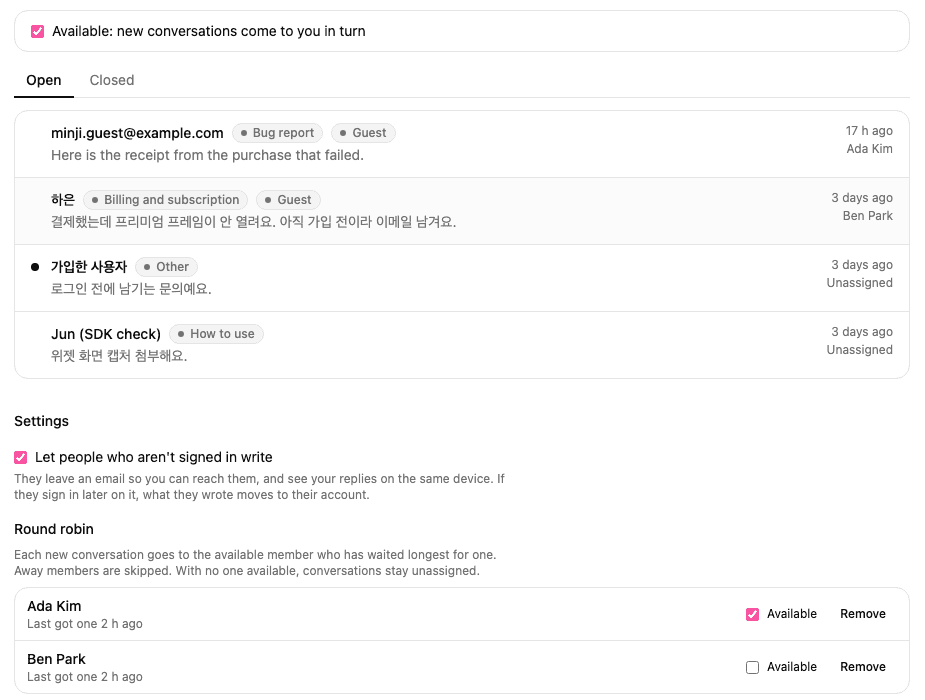
The device remembers the guest, so they see your replies the next time they open the app. If they sign in later on the same device and your app calls reidentify(), what they wrote moves to their account. In the inbox a guest's conversation is marked Guest, with Not signed in and their email beside it. Mocco doesn't email them for you yet; reply in the app, or write to the email they left.
6. Answer from the inbox
The Inbox page lists open conversations, newest activity first, with unread ones marked. Closed lists the rest. The inbox checks for new messages every few seconds while it is open.
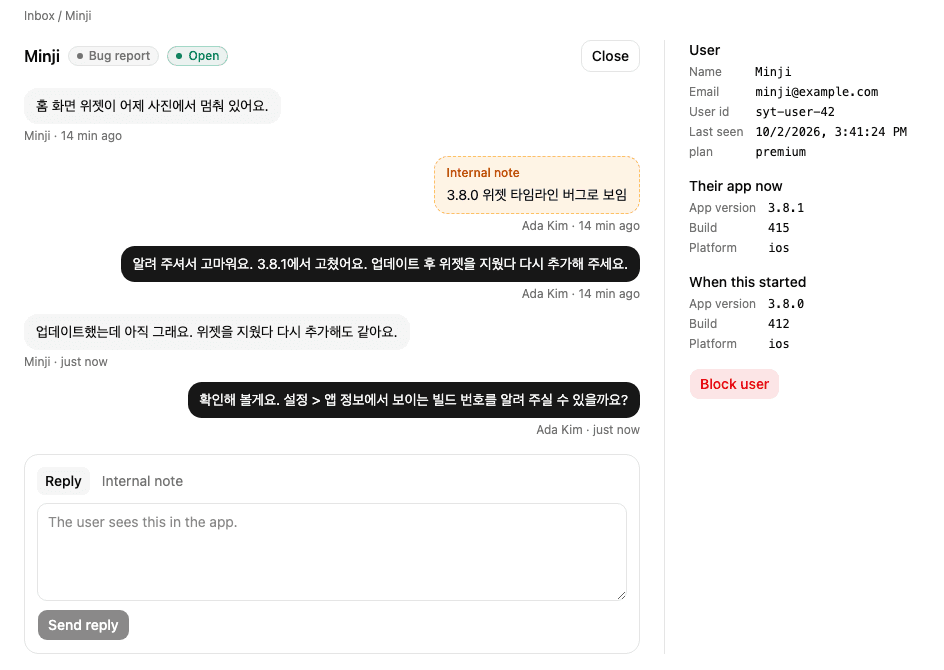
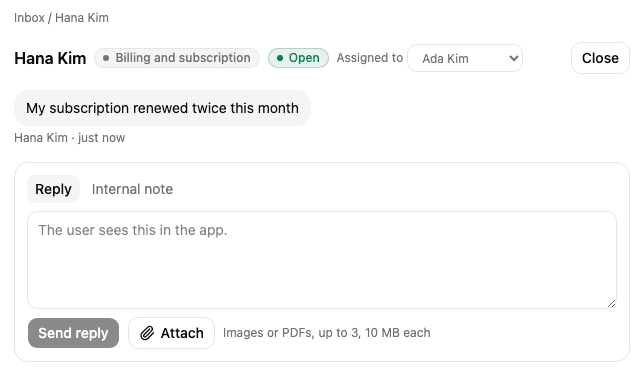
Open a conversation to read the thread and answer:
Reply sends a message the user sees in the app.
Internal note is for your team only; the user never sees it.
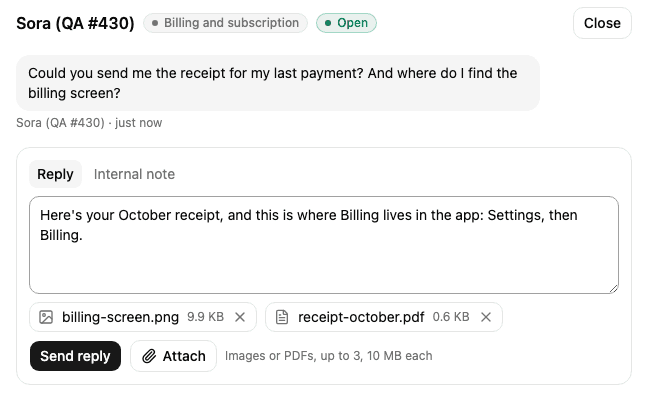
Attach adds up to three images (PNG, JPEG, WebP or GIF) or PDFs, 10 MB each, to a reply or a note.
Close when it is resolved. If the user writes again, it reopens by itself.
The side panel shows who the user is (as your app described them), the app version and platform they are on now, and what they were running when the conversation started.
Block user stops someone from writing. They can still read what they have.
Screenshots the user attached show in the thread; select one to open it full size.
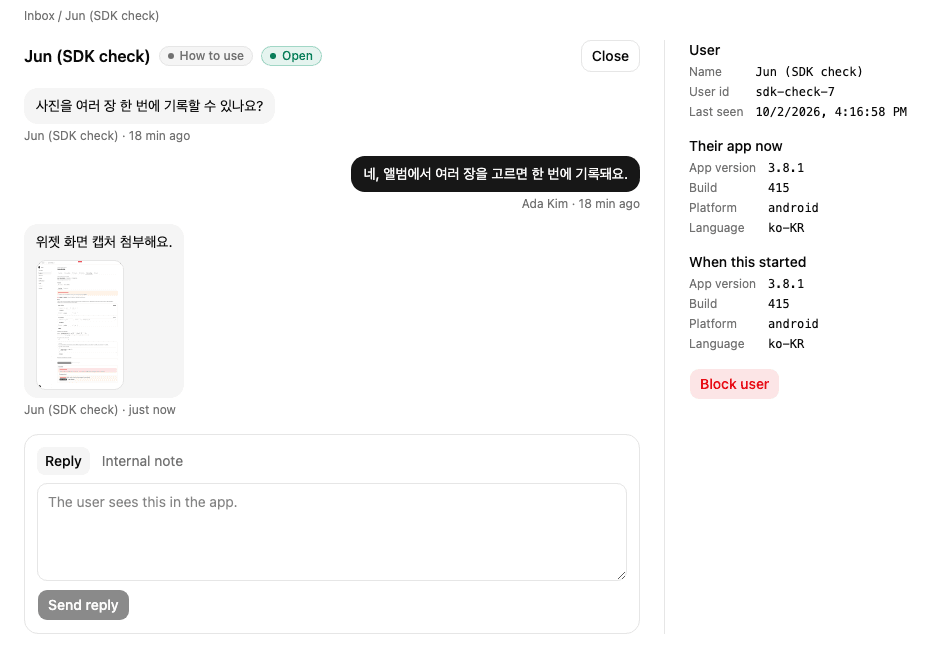
A PDF shows as a file with its name and size. Select it to download it; Mocco never opens a user's PDF in the browser, because a PDF can carry script.

To send the user a file, choose Attach below the reply, pick the images or PDFs, and select Send reply. Each file shows under the text with its size; select × to take one off before sending.
The reply shows the files in the thread, and the user's app receives them with the message, the same way it receives the files users send you: images to show, PDFs to download. Files on an internal note stay with your team.
Mocco checks your files the way it checks the user's: a file that isn't really the image or PDF it claims to be is refused, and nothing is sent.
When someone asks you to delete their data, choose Erase user's data in the side panel and confirm. Mocco deletes the user with every conversation, message and attachment; it can't be undone, and the audit log records only that it happened.
The categories users pick from are in the inbox settings. Your app gets them with each session; it can show the labels as they are or translate them by key.
Share the work with round robin
Mocco can give each new conversation to one person on your team, in turn, so the work spreads evenly and everyone knows which ones are theirs. Each conversation in the inbox shows who it is assigned to, or Unassigned.
Choose Join the rotation at the top of the inbox to start getting new conversations. To add someone else, pick them under Round robin in the inbox settings; anyone in the workspace can be added.
The switch at the top of the inbox is your availability. While you are away, new conversations skip you and go to the next available person. When you come back, the next one is yours.
If no one is available, new conversations stay unassigned until someone picks them up.
To hand a conversation to someone else, or take one that is unassigned, pick a person in Assigned to at the top of the conversation. Anyone in the workspace can take one, whether or not they are in the rotation; choose No one to put it back. Each change is in the audit log.
Removing someone from the rotation doesn't take away the conversations they already have.
7. Get notified
New conversations (messenger.conversation.created) and users writing again (messenger.message.received) are Mocco events. Apply the Mocco preset on a Discord channel's rules, or add rules for these two events, to hear about them where your team already is (see Mocco events). A new conversation's message says who it was assigned to.
If you only want to hear about the conversations no one picked up, add a rule for messenger.conversation.unassigned instead: Mocco sends it when a conversation starts while nobody in the rotation is available. Each conversation event reaches a channel once, even if the app retries.
While the inbox is open in a browser tab, Mocco can also show a desktop notification for each new conversation. Choose Turn on desktop notifications at the top of the inbox and allow it in the browser; clicking a notification opens the conversation. They stop when you close the tab.