# Deep links overview
Deep links are short links such as `https://acme./spring` that you put in emails, ads, QR codes and social posts. Each visitor is sent where they can continue: iPhone users to your app's App Store page or your iOS web page, Android users to Google Play or your Android web page, and everyone else to your website.
Opening the installed app straight from a link comes in a later update. Today a link always lands on a store page or a web page you chose, and every visit is counted (see [Clicks](#clicks)).
## 1. Turn on Deep links
On your workspace's **Products** page, turn on **Deep links**. The project then has a **Deep links** page.
## 2. Register your apps
A link sends phones to your apps' store pages, so register the apps first: on the project's **Overview** page, under **Apps**, add an iOS app with its numeric **App Store ID** and an Android app with its **Application ID** (and its **Play package** if it differs). See [Workspaces and projects](https://www.mocco.club/docs/en/articles/iu3d9y-workspace-and-projects#4-register-your-apps).
A project with no iOS or Android app can still have links, as long as each one has a web fallback (step 5).
## 3. Choose your link host
On **Deep links**, open **Settings** and enter a **Subdomain** under **Link host**, such as `acme`, then **Save**. Your links live on `acme.`. Only owners and admins can change it.
Choose carefully: once the project has a link, the subdomain is locked, because changing it would break every link you already shared or printed.
## 4. Create a link
On **Deep links**, choose **New link**. Enter the **Path in the app** the link stands for, such as `/products/42`. Optionally give it a **Slug** (the part after the host; leave it empty and Mocco makes a short one), a **Label**, a **Campaign**, **Params** and an expiry date (**Expires**). Then choose **Create link**.
The link's short URL is shown with a copy button. The slug can't change later, so a printed QR code keeps working.
Params whose names start with `utm_` (such as `utm_source=qr`) are added to your web fallback URLs when someone is sent there, so your analytics see where visitors came from.
## 5. Send people without the app to your website (optional)
Under **Web fallbacks (optional)** a link can name a page for iOS, a page for Android, and a page for everyone else. To keep links from sending people to sites that aren't yours, a web fallback must be on a **web destination** you have proven you own: in **Settings → Web destinations**, add the exact host (such as `www.acme.com`), publish the TXT record it shows, and verify it.
## Where each visitor goes
| Visitor | Goes to the first of |
| --- | --- |
| iPhone and iPad | the iOS web fallback, your App Store page, the web fallback |
| Android | the Android web fallback, your Google Play page, the web fallback |
| Computers and anything else | the web fallback |
When none of these is set, the visitor gets a small page instead of being redirected: your link's label (or project name), a button for each store page you have, and on a computer the short URL to open on a phone.
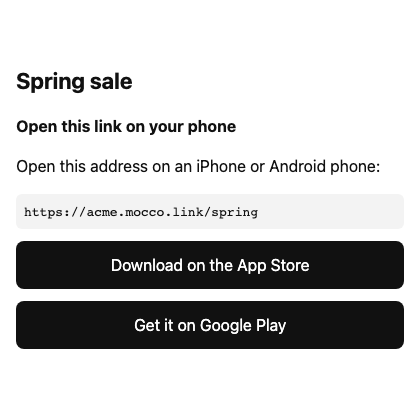
- An iPad in its default desktop mode is treated as a computer.
- Link previews (Slack, KakaoTalk, X and others) are treated as computers.
- Nothing in the address someone types after the slug changes where they go, so nobody can reuse your link to send people elsewhere.
## Clicks
Every visit to a link is counted, per day (UTC) and platform: iPhone, Android, computer and other. The **Deep links** list shows each link's clicks over the last 7 days, and a link's page shows its **Clicks**: the total, how many were people, the split by platform and every day of the range. Choose the range (the last 7, 30, 90 or 365 days) above the numbers; the page's address keeps it, so a link you share shows the same range.
- **People** leaves out link previews (Slack, KakaoTalk, X and others), which fetch a link to show its card. They still count in **Clicks**.
- Mocco never keeps a visitor's IP address or browser details. It keeps the platform, the country the network reports, and the website a visitor came from (its name only, never the page).
- Each visit is kept for 90 days; the daily counts stay as long as the project does.
- Counts appear within a few seconds of a visit.
You can also ask an AI assistant connected to Mocco for a link's or the project's clicks.
## Disabling and expiring links
A link can't be deleted, so its slug never comes back pointing somewhere else. On a link's page, **Disable link** stops it: visitors see "This link has ended". **Enable link** turns it back on. A link past its expiry date shows the same page.
A change takes effect within a minute everywhere.
## Reports of abused links
Every page a link host shows for a link ends with **Report this link**, so anyone who finds a link used for phishing, malware or spam can tell you. Reports wait under **Deep links → Reports**, with the reason, what the person wrote and an email if they left one. Any member can:
- **Dismiss** a report that needs nothing done.
- **Disable link** to stop the reported link. Every other open report on that link is resolved with it, and the link's page says it was disabled from a report.
To be told when a link is reported, add a notification rule for **`links.abuse.reported`** on one of your channels. It arrives once a day per link, however many reports come in.
## Pausing all links
If many links are being abused at once, owners and admins can stop all of them: in **Deep links → Settings**, choose **Pause all links** and, if you like, write a reason only your team sees. Every link then shows "This link is temporarily unavailable" until you choose **Resume links**. People can still report links while they are paused.